How do I track each student’s progress?
Last updated: October 15, 2026
1️⃣ Open a student’s profile
From “My Groups”, open a group, then the “Group students” tab, and click a student’s name to open their individual profile.
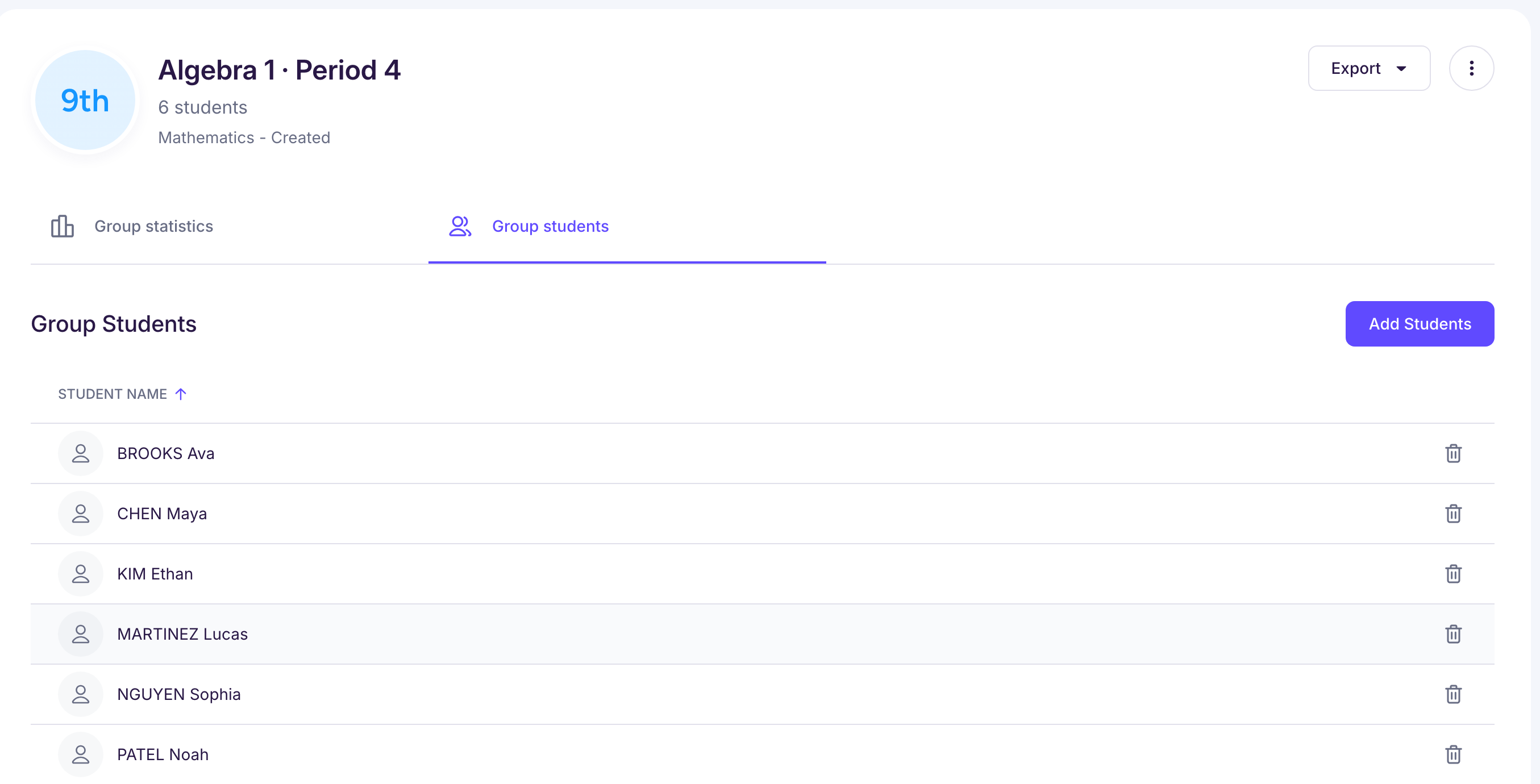
2️⃣ What you see for each student
The student profile gives you a complete view of their work:
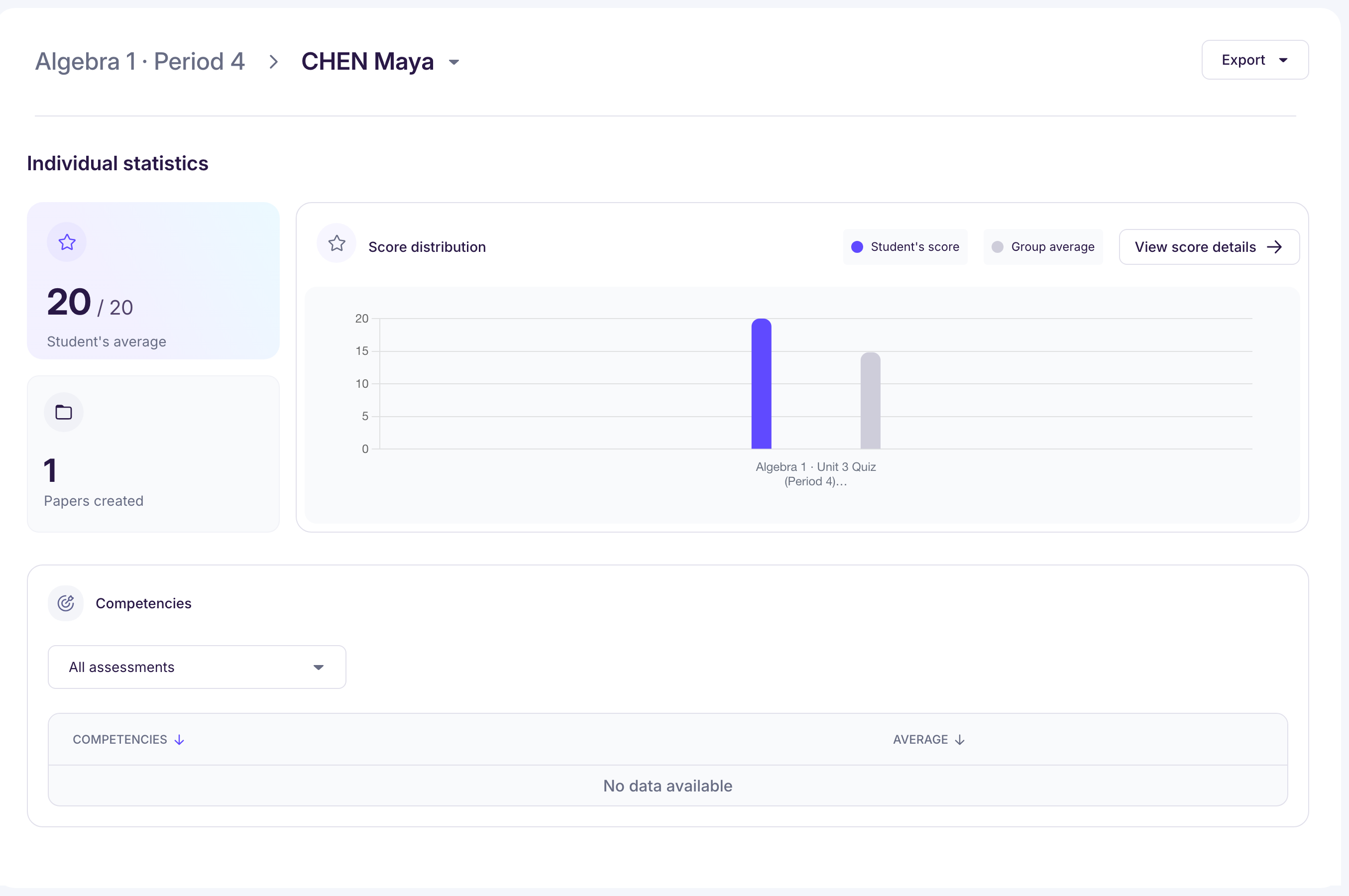
🧮 Overall results
-
“Student’s average” across all their papers
-
“Papers created”: the number of papers
📈 Score distribution
If you grade with scores, you get:
-
Distribution chart: a chart of the student’s result on each assessment, compared with the group’s results
-
Score details: a table of the student’s results on every assessment, with the group’s average, lowest and highest score
➡️ You can export the table to Excel (“Export Results”).
-
You can sort or filter by assessment
📈 Competencies
If you grade with competencies, a “Competencies” section appears in the student’s profile. It shows the student’s mastery level on every competency assessed across your assessments.
You can choose which assessments the summary includes.
🧠 Our analysis
In this section, you find Ed.ai’s own analysis:
-
A detailed analysis of the skills assessed across the student’s assessments. In a math class, each skill is a standard from the curriculum you chose (Common Core, AP or your state standards). For each skill, you see:
-
the student’s mastery level (“Below Expectations”, “Emerging”, “Satisfactory” or “Excellent”)
-
the skills flagged as a “Strong point” or an “Area for improvement”
-
how the level changes from one assessment to the next: click a skill to see the student’s papers on it
-
-
A detailed analysis of the errors found in the student’s papers across assessments, through the “Skills” / “Observations” toggle
- Errors are grouped into categories for your subject: see Comprendre le suivi des erreurs en mathématiques
🧩 What’s next?
Analysis connects to reteaching: Ed.ai can generate personalized activities based on the skills students haven’t mastered yet. See Remédiation : fonctionnement et bonnes pratiques
3️⃣ Export the student’s results
From a student’s profile, click “Export”, then “Export Results” to get their results in Excel. “Export Analysis” gives you their skills analysis.
📝 This file is handy for a parent-teacher conference, a progress report or an intervention meeting.