How do I access an assessment’s analysis?
Last updated: October 15, 2026
🧭 How do I access an assessment’s analysis?
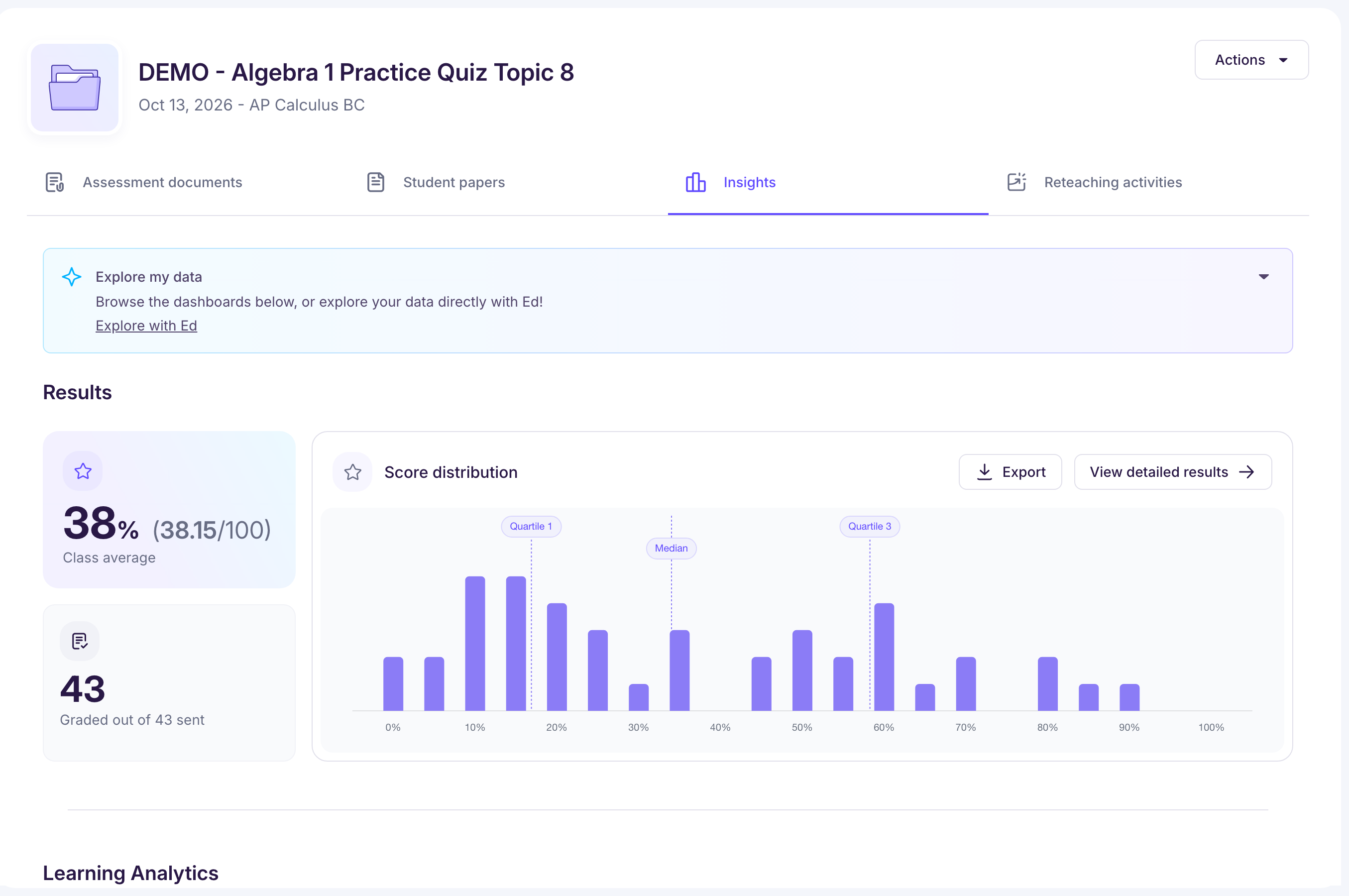
Once an assessment has been graded, you can see all the results in the “Insights” tab, available in every assessment.
It’s the summary space where you see your students’ results, spot the skills they’ve mastered or not, and identify the most frequent errors.
🔢 What data is available?
Assessment results
🎯 Class average
Shown at the top left of the page, the “Class average” gives you a first read on the overall level of your students on this assessment.
📈 Score distribution
If you grade with scores, you get:
-
Distribution chart: shows the class’s results, which helps you spot gaps between students. The median and quartiles are shown for a finer read.
-
Detailed table by exercise: each question has an average, so you can see which exercises and questions went well and which didn’t.
➡️ You can export the results to Excel from the assessment’s “Actions” menu, “Export assessment results”. If your class is linked to your LMS, you can also send graded papers to it: see Ed.ai s’intègre-t-il avec le LMS de mon établissement ?
📈 Competencies
If you grade with competencies, you get the following for your competency scale:
-
For each competency, the class’s average mastery level
-
When you click a competency row: the list of students grouped by mastery level, which you can filter by level
Our analysis
🧠 Learning Analytics: the skills assessed
Each assessment is organized internally around skills (see Comprendre le suivi des savoir-faire). In a math class, each skill is a standard from the curriculum you chose.
For each skill, you see:
-
the distribution of mastery levels (“Below Expectations”, “Emerging”, “Satisfactory”, “Excellent”), with the number of students at each level
-
a clear view of the class’s strengths and areas for improvement
Click a skill to see the students’ papers grouped by mastery level.
This goes further than a single score: it shows exactly what your students can do, and what they can’t do yet.
✍️ Errors found
At the top right of the skills table, the “Observations” button (next to “Skills”) gives you a summary of the errors found across all papers.
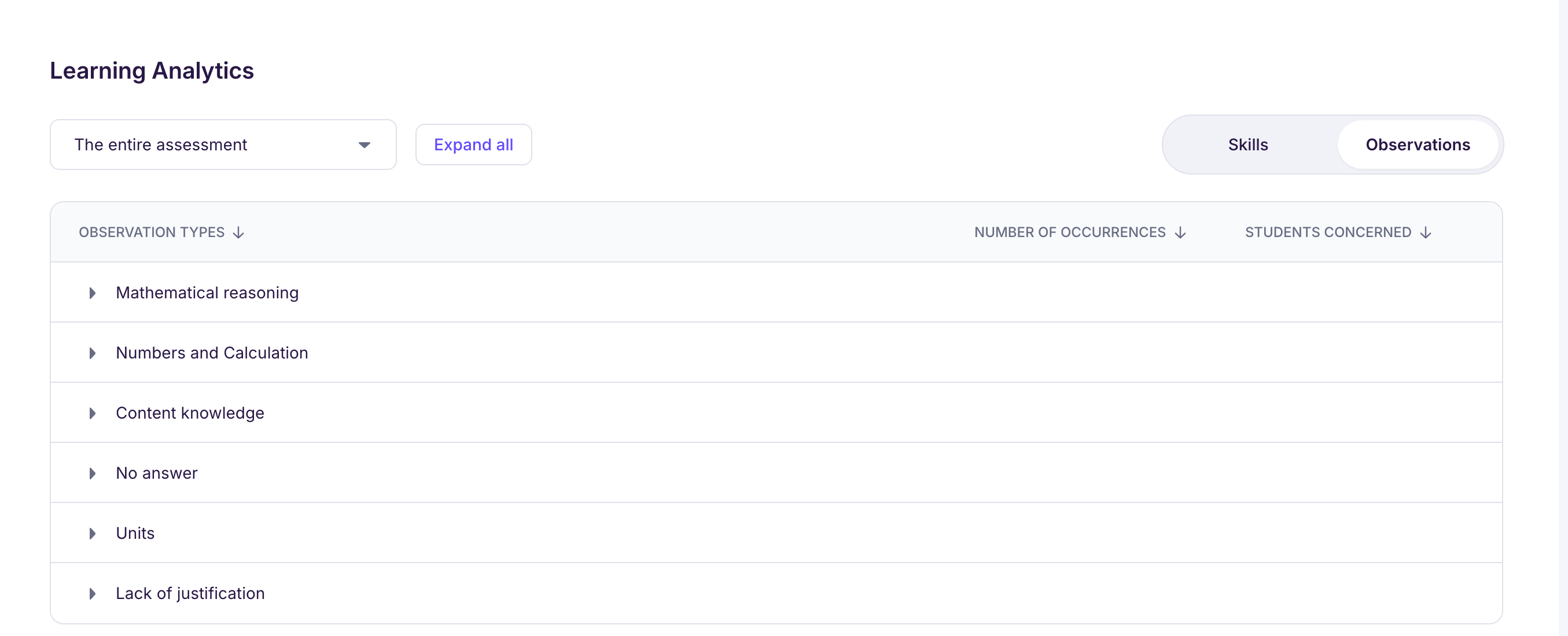
Errors are grouped into categories for your subject: see Comprendre le suivi des erreurs en mathématiques
What’s next?
Assessment analysis connects to reteaching, which lets you generate personalized activities based on:
-
the skills students haven’t mastered yet
-
the type of activity you want