How do I add student papers?
Last updated: October 15, 2026
📝 Add student papers after creating an assessment
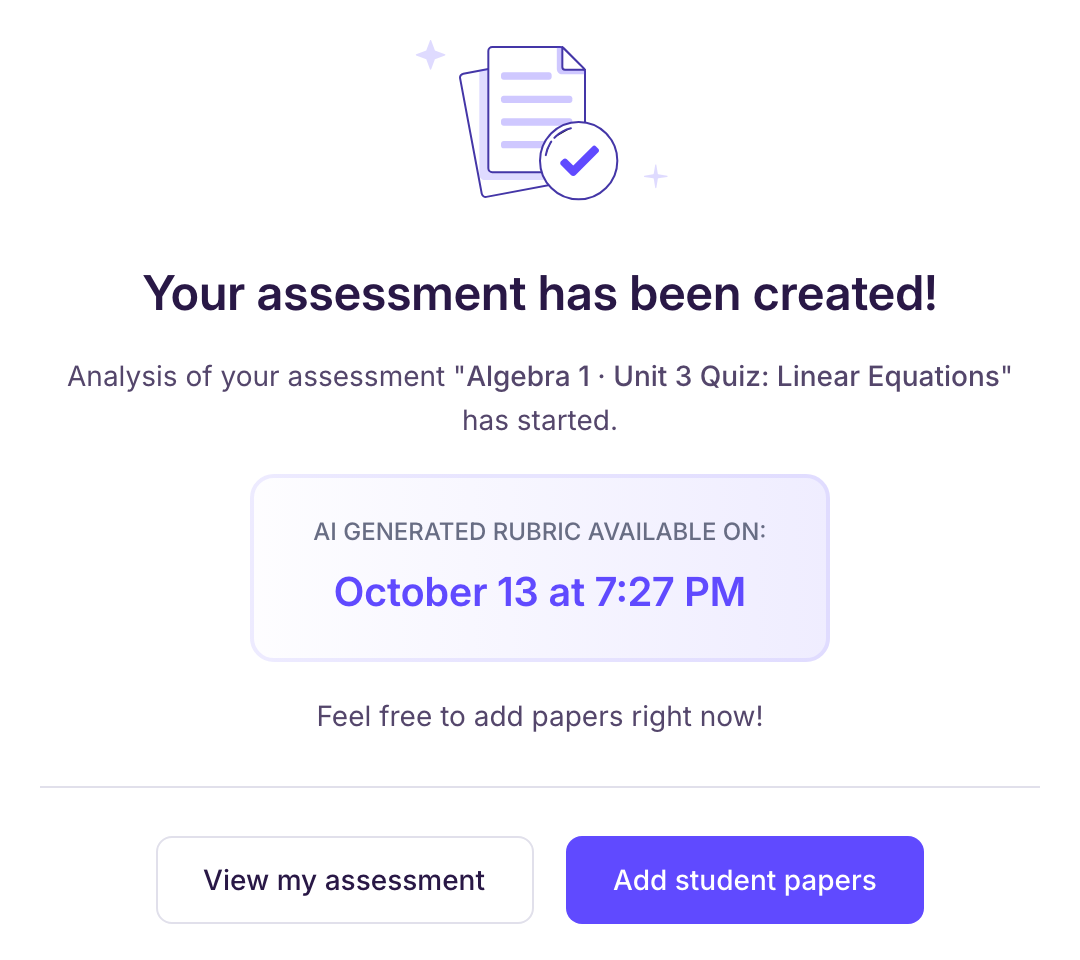
Once your assessment is created in Ed.ai, you can add your students’ papers to it.
This screen shows up automatically:
🚀 Choose how to add papers
👉 Several methods are available.
Pick the one that suits you best, then follow the detailed guide.
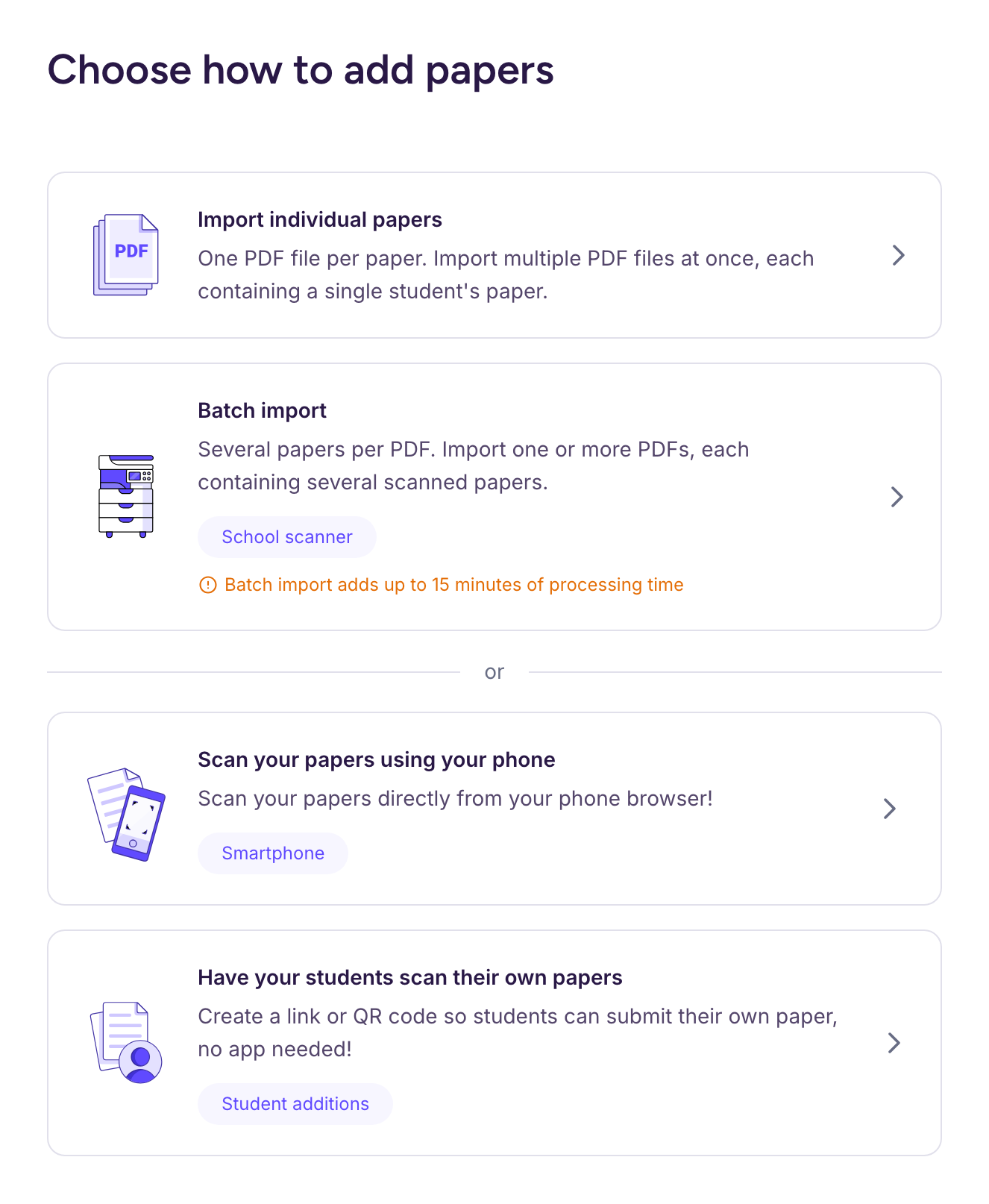
📄 1. Your papers are already scanned as PDFs
“Batch import” (all the papers of the class in one PDF, one after another) or “Import individual papers” (one PDF per student).
➡️ Comment importer des copies scannées (PDF)
🖨️ 2. You use your school copier
➡️ Guide pratique : scannez des copies avec votre scanner d’établissement
📱 3. You scan the papers with your phone
Option “Scan your papers using your phone”.
➡️ Comment utiliser un téléphone pour numériser vos copies ?
📱 4. Your students add their own paper
Option “Have your students scan their own papers”.
➡️ Comment activer le dépôt élève ?
💡 If your Ed.ai account is connected to your LMS (Google Classroom, Canvas, Schoology and others), you also see “Import files from” followed by the name of your LMS, to pull your students’ submissions directly.
✅ Once the papers are added…
Ed.ai takes it from there:
-
You get an email as soon as the papers are processed.
-
The grading status of each paper shows in the “Student papers” tab.
⏳ Grading takes under 30 minutes, and each paper shows when its grading will be ready: see Quelle différence entre le mode de correction rapide et le mode de correction approfondie ?