How do I turn on student paper submission?
Last updated: October 15, 2026
You decide whether your students can add their own paper to an assessment.
✅ To turn it on:
-
Open the paper import for your assessment (“Add student papers”, or “Add a paper” in the “Student papers” tab).
-
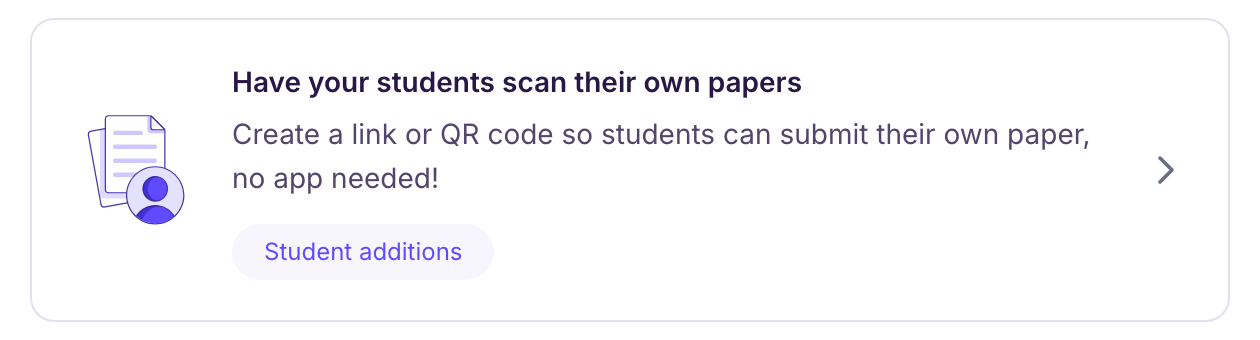
Choose “Have your students scan their own papers”.
-
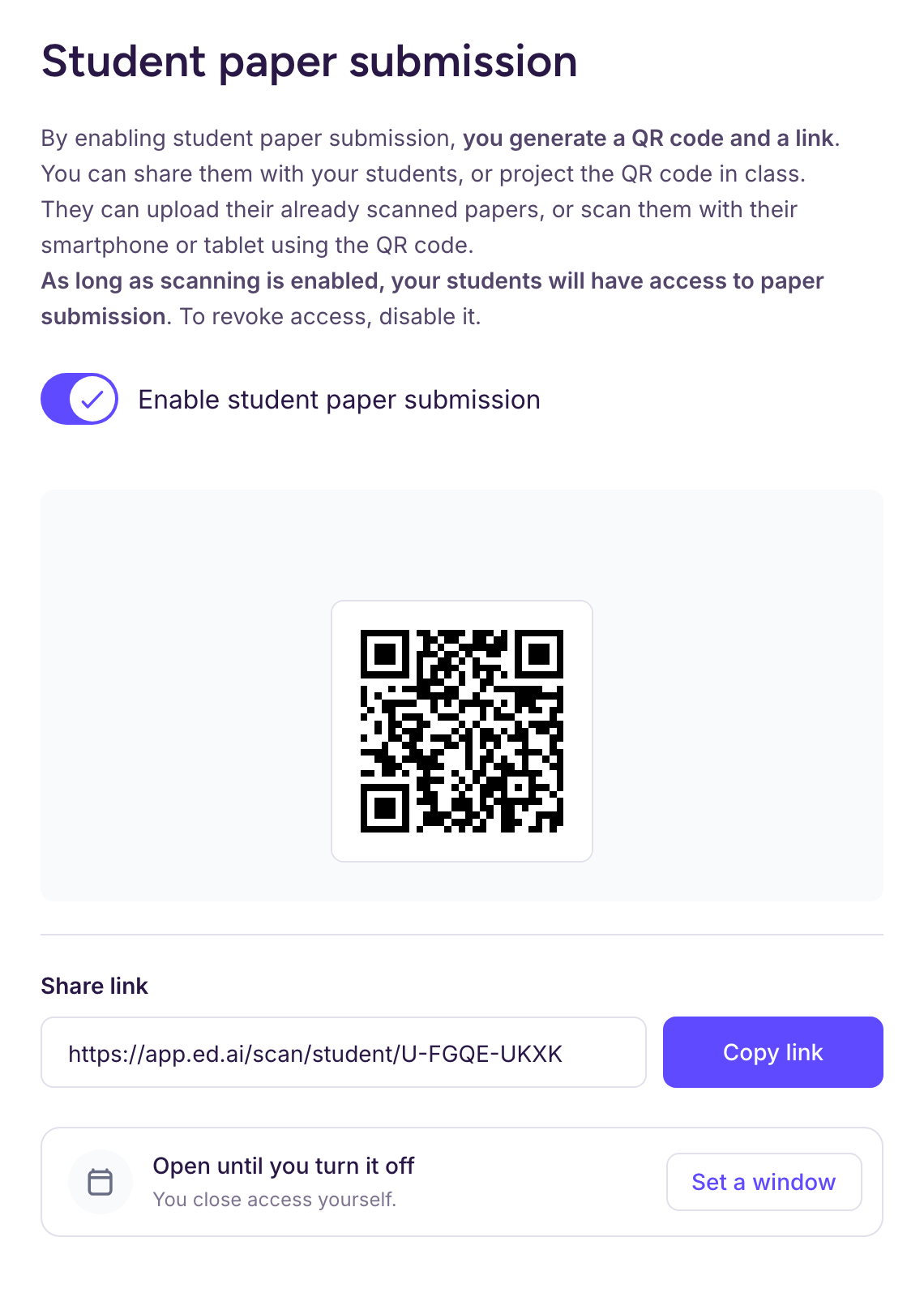
Turn on the “Enable student paper submission” switch: a QR code and a link are created. Share the link with your students, or project the QR code in class.
-
If you like, click “Set a window” to choose an opening and a closing date: outside this window, your students can’t submit their paper.
Once it’s on:
Your students can upload a paper they’ve already scanned, or scan it with their smartphone or tablet using the QR code. Their papers show up in the “Student papers” tab as they come in.
You stay in control of the submissions while giving your students more independence.
Turning student paper submission off later:
Turn off the “Enable student paper submission” switch to close access.
This doesn’t delete the papers already added, but it blocks any new paper or change from students.