How do reteaching activities work, and what are the best practices?
Last updated: October 15, 2026
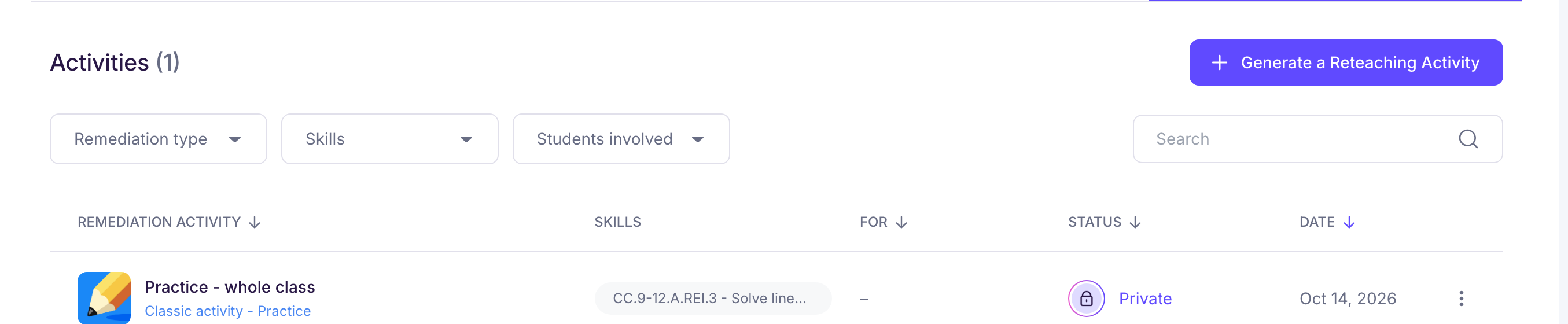
Ed.ai helps you prepare reteaching activities from your students’ results on a graded assessment (in the assessment, you’ll find them in the “Reteaching activities” tab). You start the creation and choose the type of activity, the students and the skills to work on. Ed.ai then builds the activity from the errors and needs it found in the papers.
💡 A reteaching activity builds on papers that are already graded. For an activity that reflects the whole class, wait until every paper in the assessment is graded.
Where do I create a reteaching activity?
-
From the assessment’s “Reteaching activities” tab: click “Generate a Reteaching Activity”. The button becomes active as soon as at least one paper is graded.
-
From the “Insights” tab: click a skill to see the students’ papers by mastery level (“Below Expectations”, “Emerging”, “Satisfactory”, “Excellent”). Select one or more levels if needed, then click “Generate a reteaching activity”.
-
From a student’s paper: in the paper’s menu, choose “Create a reteaching activity”. The activity is then prepared for that student.
You can also ask Ed (“Talk to Ed!”) to create an activity: see Idées de prompts pour Ed - Créer une activité de remédiation.
Activity types
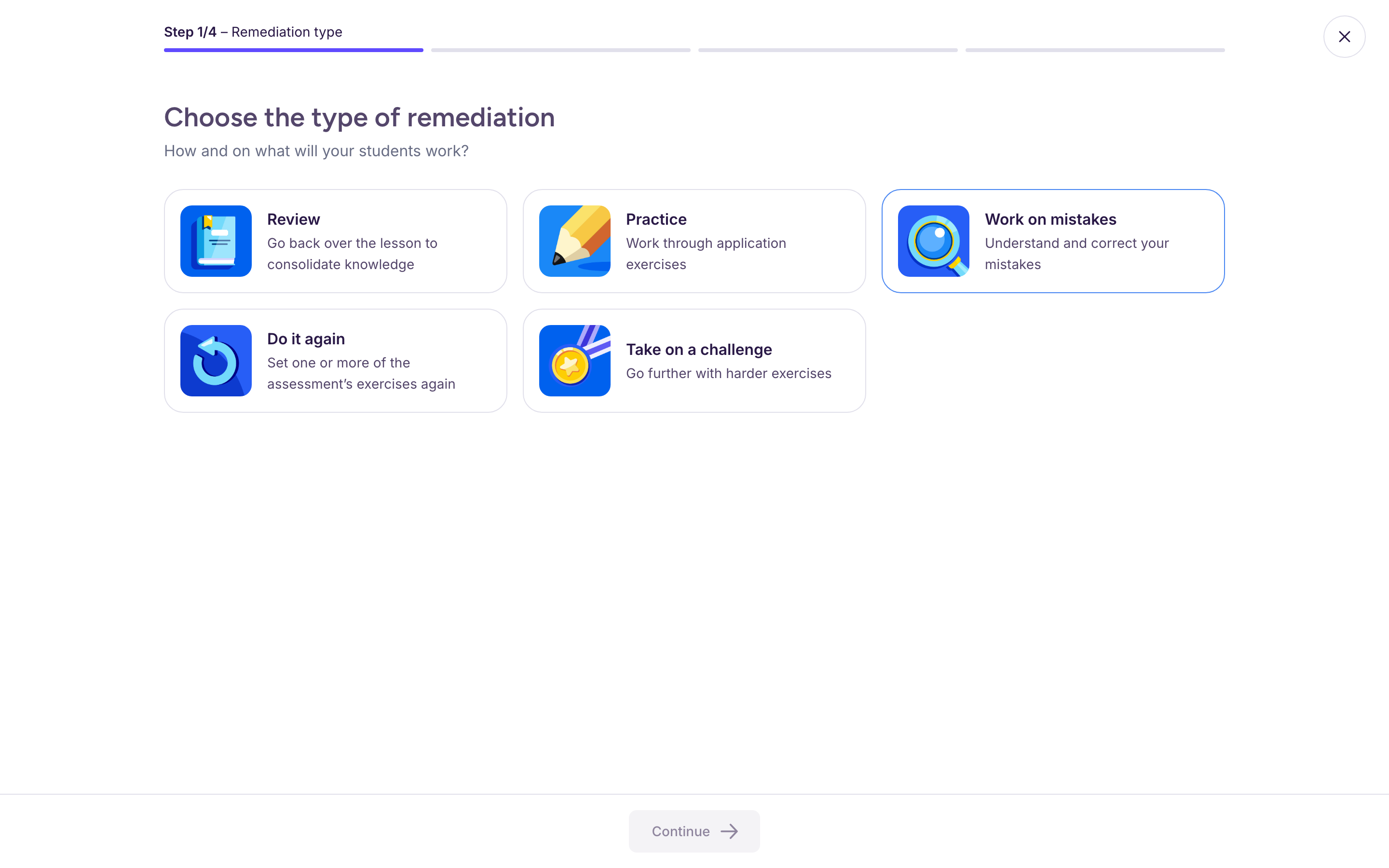
Reteaching activities are classic activities that you can print or project. You choose from five types:
-
“Review”: go back over the lesson to consolidate knowledge.
-
“Practice”: work through application exercises.
-
“Work on mistakes”: understand and correct mistakes.
-
“Do it again”: set one or more of the assessment’s exercises again.
-
“Take on a challenge”: go further with harder exercises.
Settings
-
Skills: the assessment’s skills to work on, with the class results for each one. For “Do it again”, you pick the assessment’s exercises instead.
-
Students: the whole class, a needs group (the students at a given level on these skills) or specific students.
-
Duration: 5 minutes to 1 hour, or a custom duration (20 minutes by default). “Do it again” has no duration: the exercises you pick set it.
-
Advanced options: student answer areas on the sheet (on by default), how students work (individual work, group work or guided discussion) for “Work on mistakes” and “Take on a challenge”, question format (mixed, multiple choice or written answers) for “Practice”, and hints for “Do it again”.
💡 For a well-targeted activity, pick 1 to 3 skills.
The step-by-step guide: Comment générer une activité de remédiation pour ma classe / certains élèves ?
After you create it
The activity is ready in a few minutes, and a notification lets you know. It appears in the assessment’s “Reteaching activities” tab, with the skills it covers, the students it’s for and its sharing status.
It stays private until you share it: you decide when to hand it out, and to whom. You can:
-
review and edit it: Comment modifier une activité de remédiation ?
-
share it with your students with the “Share” button: it then shows up in their space, under “Remediation Activities”;
-
export it to print it: Comment exporter une activité de remédiation ?
Ed.ai doesn’t show yet whether a student opened or did an activity: see Puis-je suivre la complétion des remédiations proposées aux élèves ?