How do I edit a reteaching activity?
Last updated: October 15, 2026
Once it’s generated, you can edit a reteaching activity right in Ed.ai, with no export needed.
✏️ 1. Open the activity
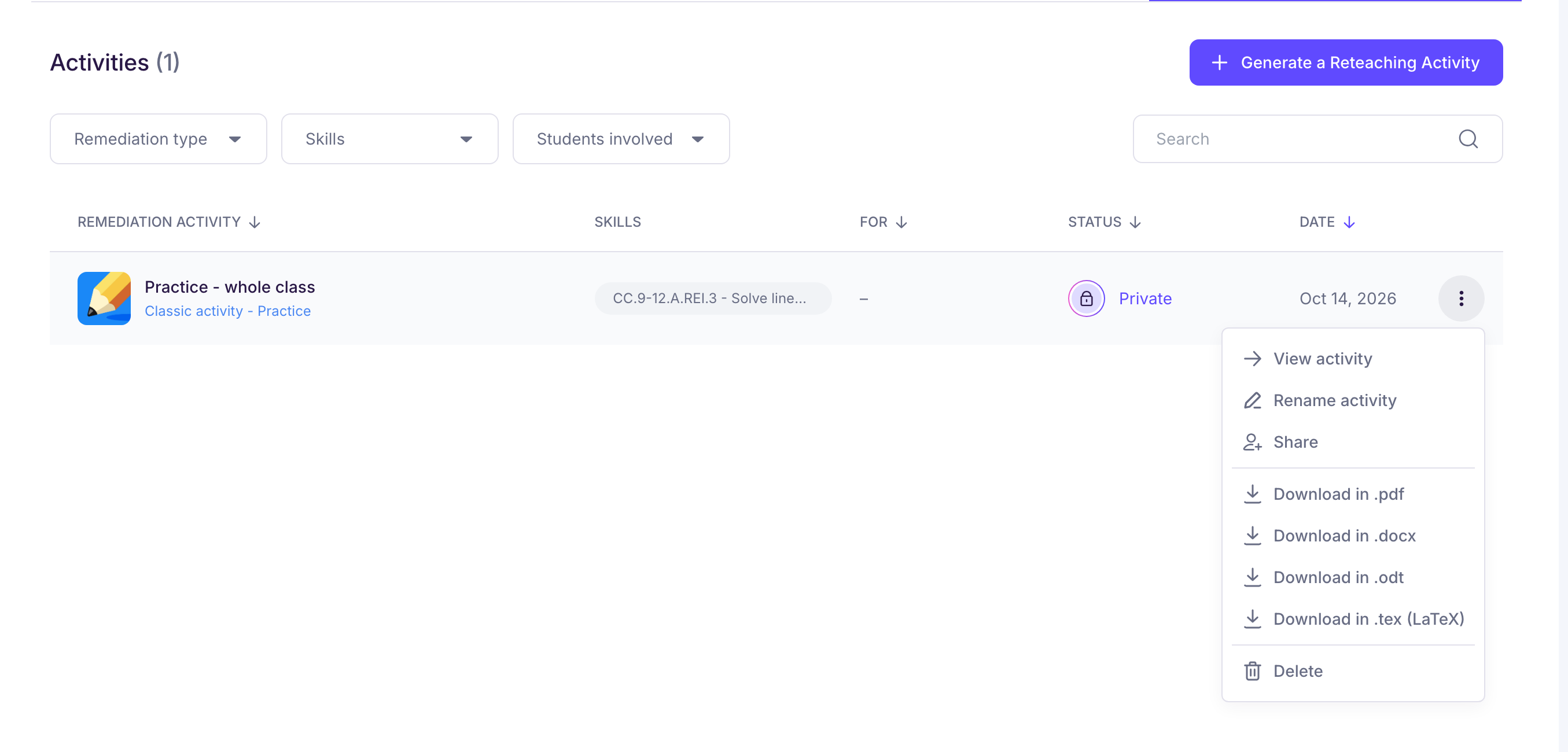
In the assessment’s “Reteaching activities” tab, open the activity’s “⋮” menu and choose “View activity”. The activity opens in the editor.
🛠️ 2. Edit the content
Click in the text to edit the exercises, instructions or questions. The toolbar at the top lets you:
-
undo or redo a change;
-
format text (bold, italic, underline, lists, headings, alignment);
-
insert an equation, an image or a page break;
-
add a “Teacher note”, which your students don’t see;
-
add a “Student answer area” (box or lines).
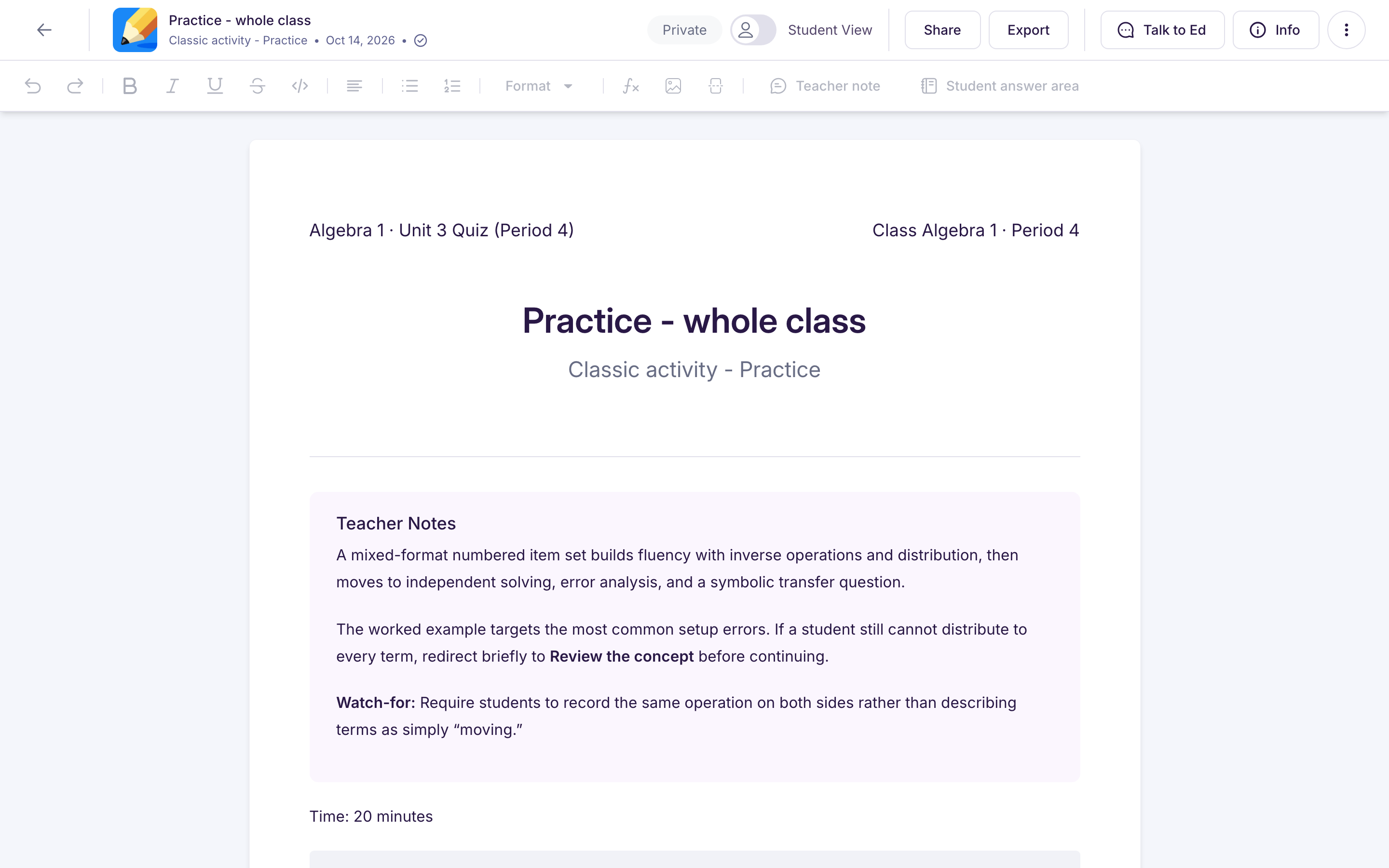
Your changes are saved automatically. An activity you’ve already shared stays editable, without going back to private.
To see the activity the way your students will, turn on “Student View”.
💬 3. Edit with Ed
Click “Talk to Ed” and describe the change you want: rephrase or simplify a passage, add or remove an exercise, adjust the level or the tone. You can also select a passage and click “Add to chat”.
🕘 Go back to an earlier version
As soon as the activity has been edited, a “Version” menu appears at the top of the activity, next to “Export”. It lists the successive versions (generated by AI, edited manually, edited with Ed…). Pick one, then click “Restore this version”.
📄 Edit outside Ed.ai
You can also export the activity as DOCX or ODT to rework it in your word processor: see Comment exporter une activité de remédiation ?
To rename the activity: open its “⋮” menu, then “Rename activity”.