How do I export a reteaching activity?
Last updated: October 15, 2026
You have several ways to print, rework or share a reteaching activity.
🖨️ 1. Export from the activity
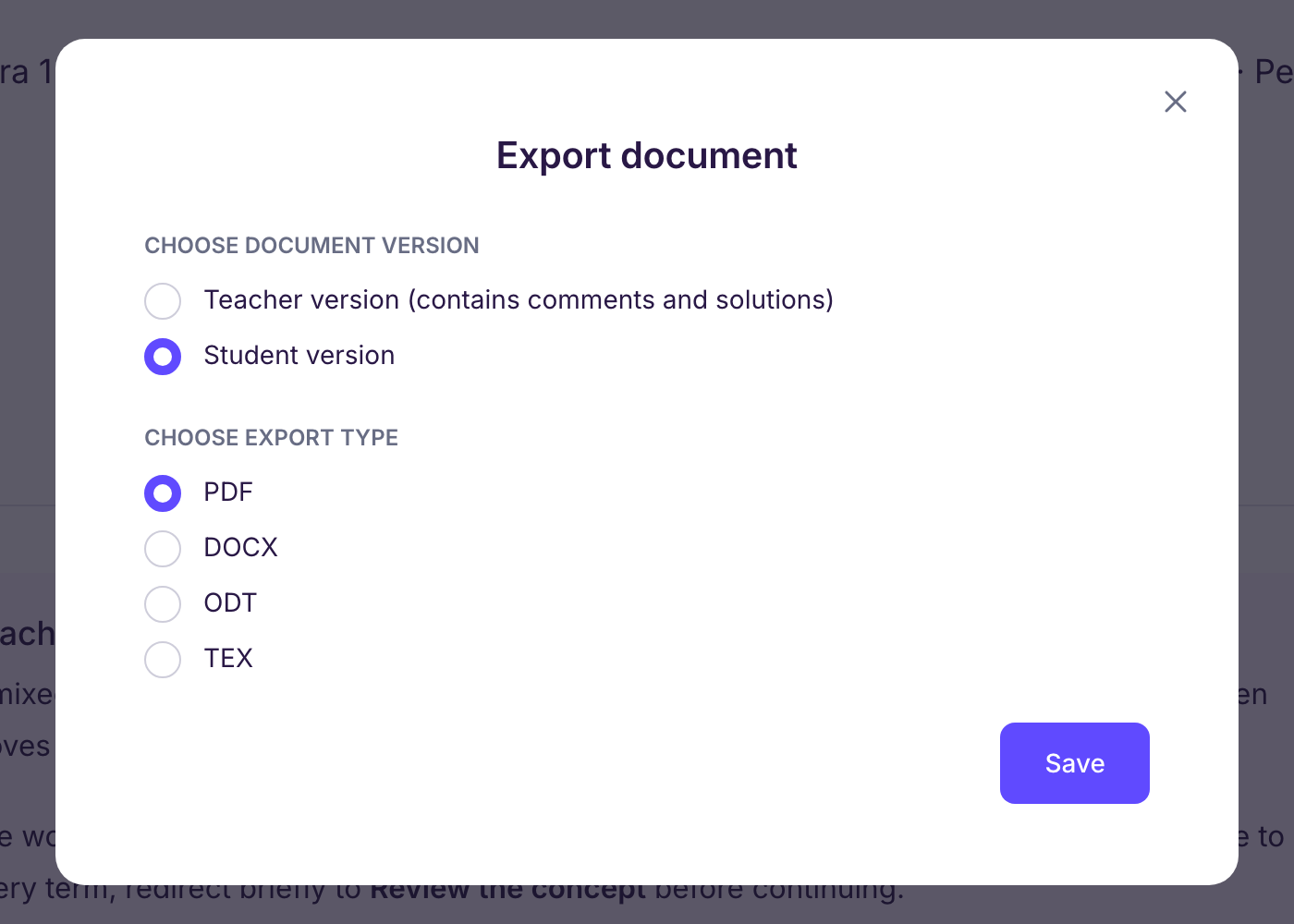
Open the activity, then click “Export” at the top right. In the “Export document” window:
-
“Choose document version”: “Student version”, or “Teacher version (contains comments and solutions)”.
-
“Choose export type”:
-
PDF, to print or project;
-
DOCX (Word, Google Docs) or ODT (LibreOffice), to edit the activity in your word processor;
-
TEX (LaTeX).
-
-
Click “Save”.
📋 2. Download from the activities list
In the assessment’s “Reteaching activities” tab, open the activity’s “⋮” menu, then choose “Download in .pdf”, “Download in .docx”, “Download in .odt” or “Download in .tex (LaTeX)”. This download gives you the student version.
📡 3. Share the activity without exporting it
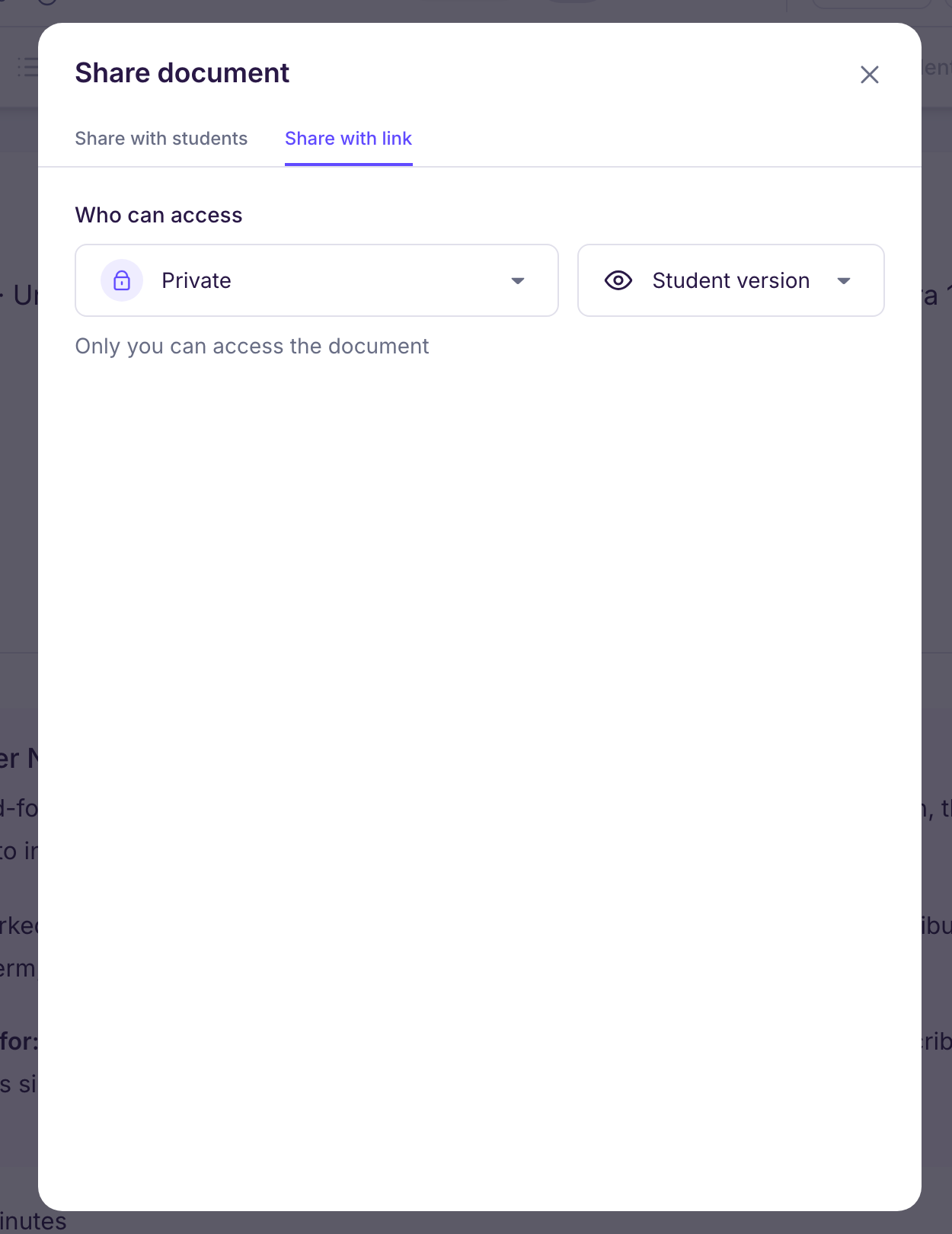
Open the activity and click “Share”:
-
“Share with students” tab: the activity shows up in the Ed.ai space of the students on the list, once “Open student access” is on;
-
“Share with link” tab: set access to “Public” to get a link and a QR code. Anyone with the link or the QR code can then open the activity.
🎯 Rule of thumb:
-
PDF → to print or project;
-
DOCX or ODT → to rework the activity in your word processor;
-
Share → to send it to your students online.
Need help? Email us at contact@ed.ai