How do I export my students’ or classes’ statistics?
Last updated: October 15, 2026
✅ You can export your Ed.ai data at any time.
🧭 What can you export?
-
An assessment’s results: Excel (.xlsx or .csv)
-
A group’s results, across all its assessments: Excel (.xlsx)
-
A student’s results: Excel (.xlsx)
-
Graded papers: PDF
📌 Export an assessment’s results
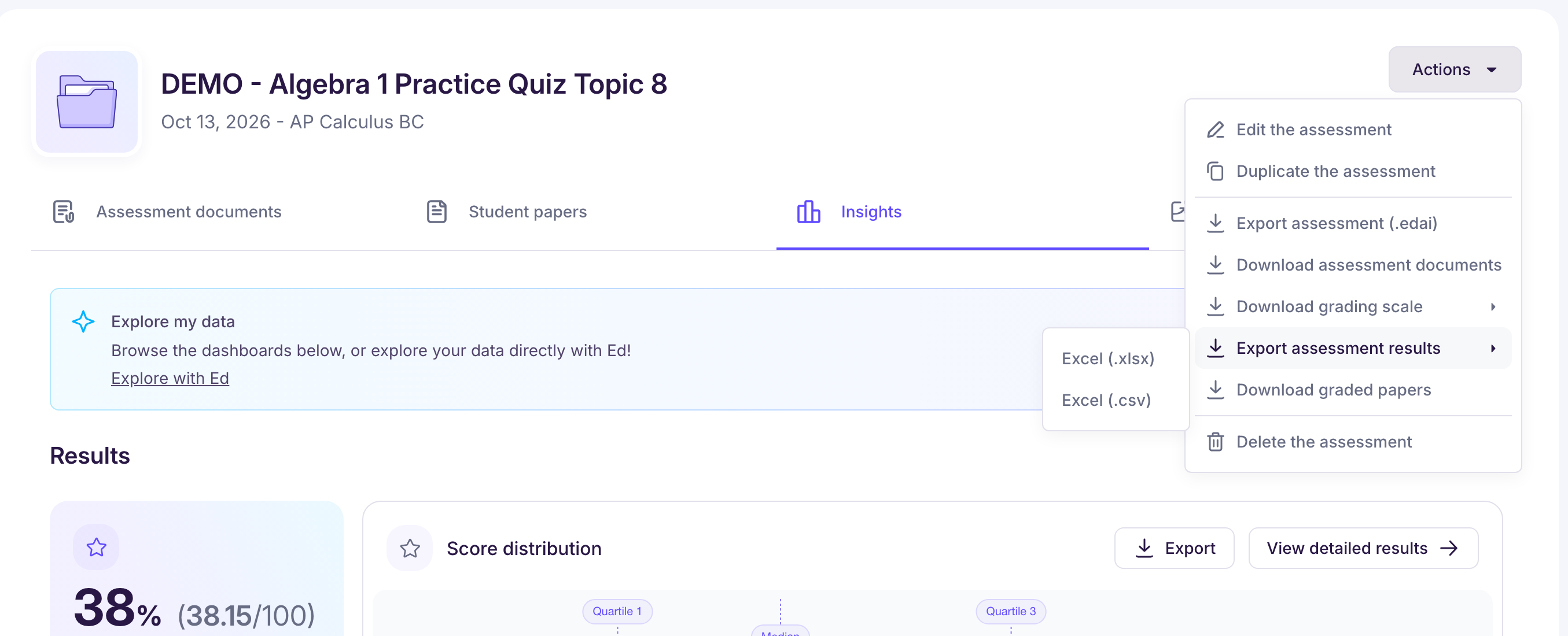
In your assessment, open the “Actions” menu at the top right, then “Export assessment results”, and choose the format.
If your class is linked to your LMS (Canvas, Schoology, Google Classroom and others, through Edlink), you can also send graded papers to the linked assignment there: see Ed.ai s’intègre-t-il avec le LMS de mon établissement ?
📌 Export a group’s results
-
Go to “My Groups” and click the group you want.
-
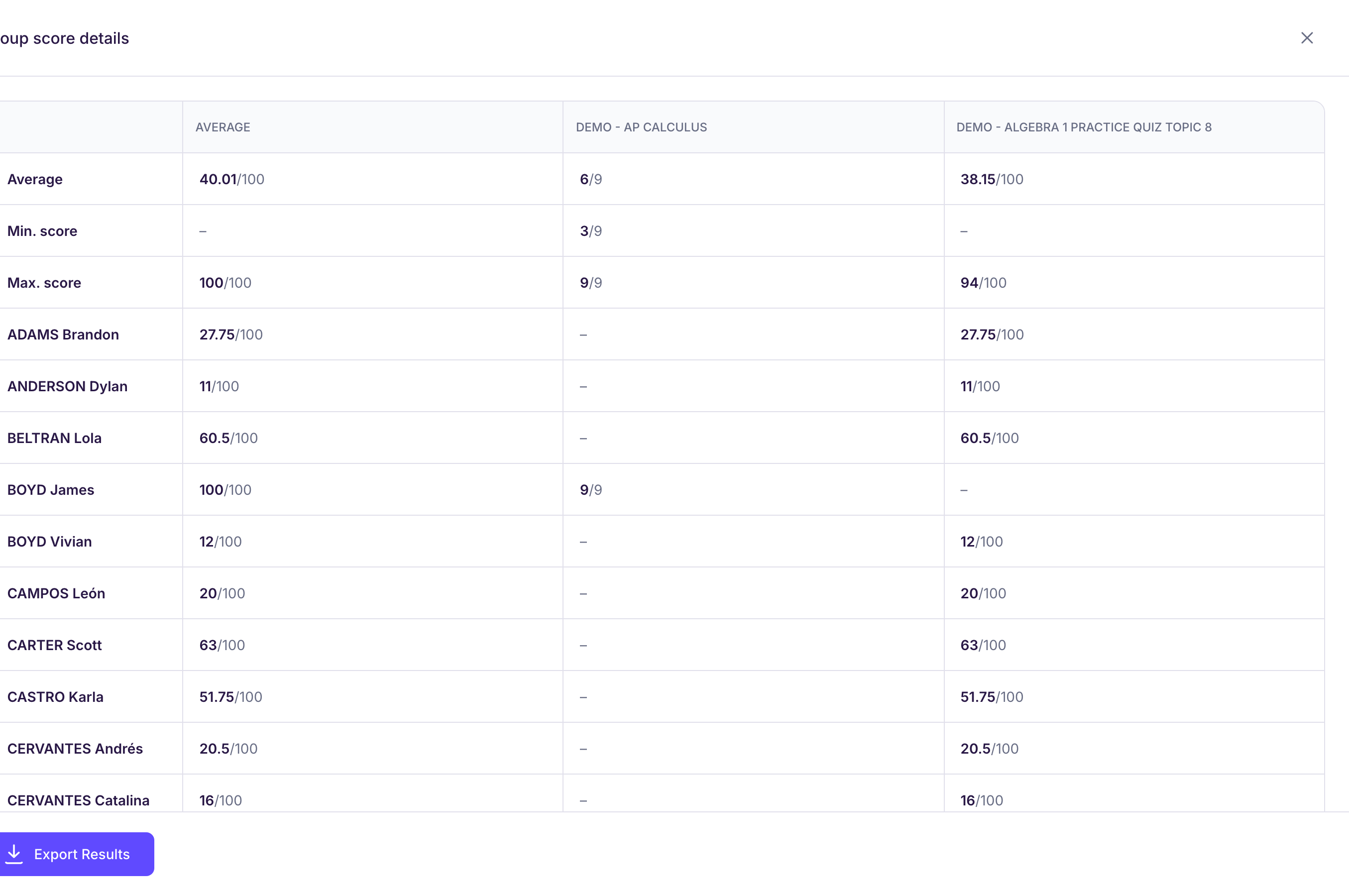
In “Group results”, click “View score details”.
-
Click “Export Results”.
📌 Export a student’s results
-
Open a group from “My Groups”, then the “Group students” tab.
-
Click the student’s name.
-
In their profile, click “Export”, then “Export Results”.
📌 Export graded papers as PDFs
-
In your assessment, open the “Student papers” tab.
-
Click “Release graded papers”, then “Download as PDF”.
-
Choose the students, what the PDF includes and the export format: “One PDF per student”, “Single PDF for all students”, or a single PDF for double-sided printing.
🎯 What are these exports for?
These exports are especially useful to:
-
Prepare report cards or progress reports
-
Support a conversation with a family
-
Keep a record of a student’s or a group’s work over the year