What is the student view?
Last updated: October 15, 2026
The student view lets you see the paper exactly as your student will see it, once you've shared it with them.
The teacher view, on the other hand, is where you edit: adjust feedback and comments, add audio notes, fine-tune the scoring Ed.ai applied, or check the errors it detected.
You can switch between the two views at any time, in two clicks.
Here's how:
-
Step 1: On the paper, open the “Action” menu at the top right, then turn on “View the paper in student mode”.
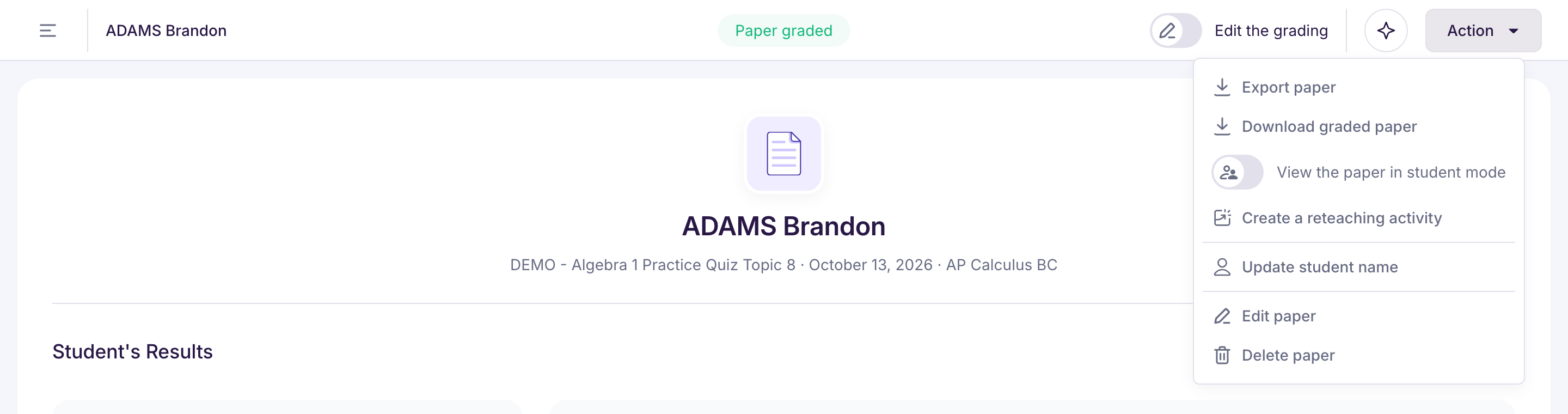
-
Step 2: The paper now has a purple border: you're in the student view.
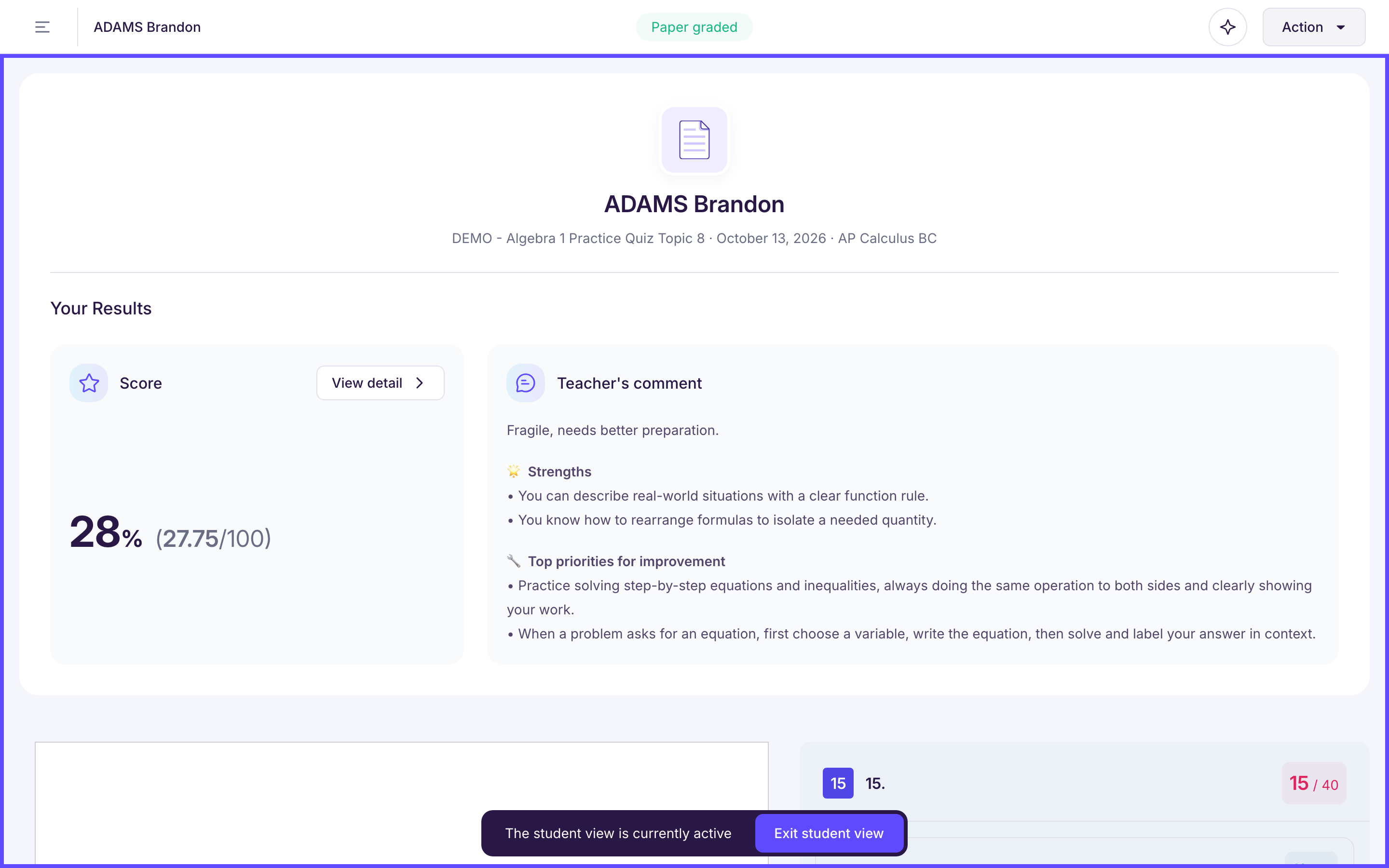
To go back to the teacher view, click “Exit student view” (the purple button at the bottom center of your screen).