How do I download, export or share my graded papers?
Last updated: October 15, 2026
You can do this at any time.
Whether you want to keep a record, send a graded paper to a student or print it, every option is easy to reach from your teacher account.
Here's how:
-
Open the “Student papers” tab of the assessment.
→ You'll see the full list of student papers, each with its status.
-
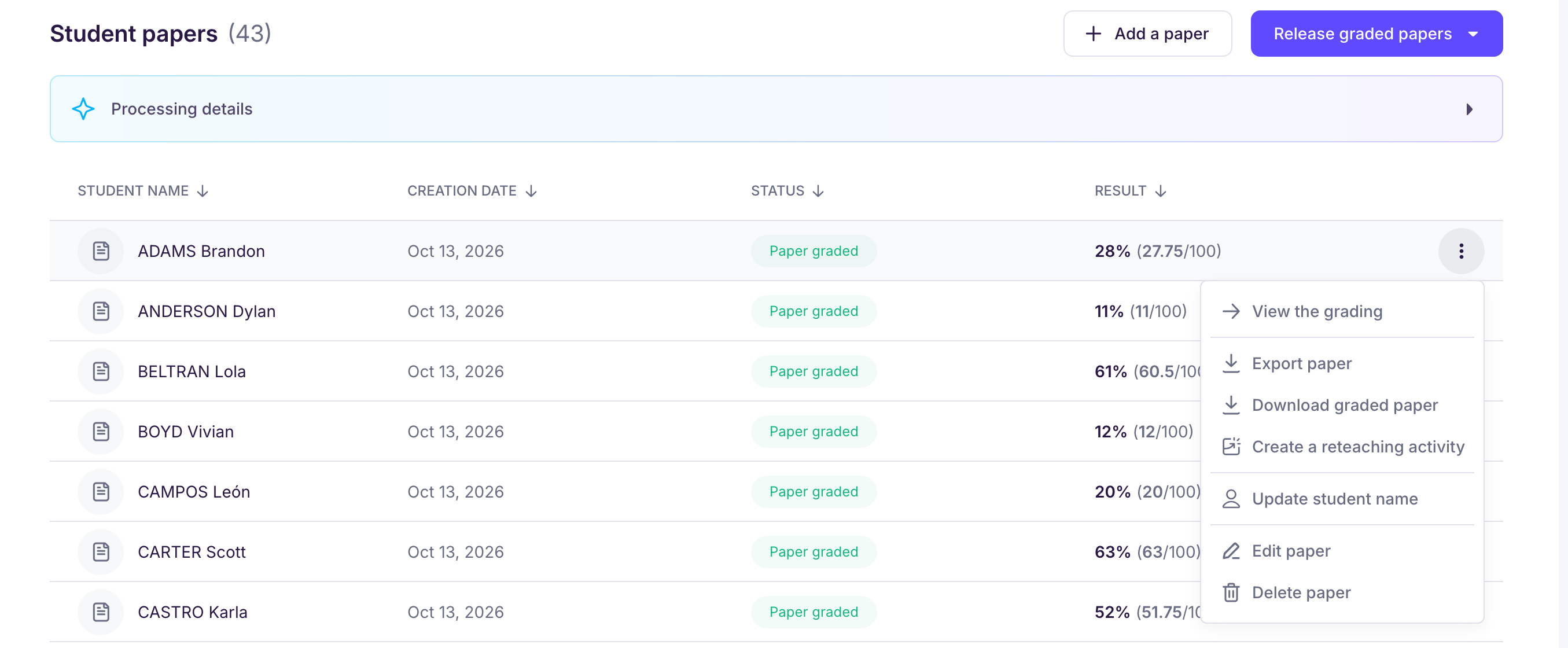
Click the three dots to the right of a graded paper.
→ A menu opens with several actions, including “Download graded paper” and “Edit paper”.
-
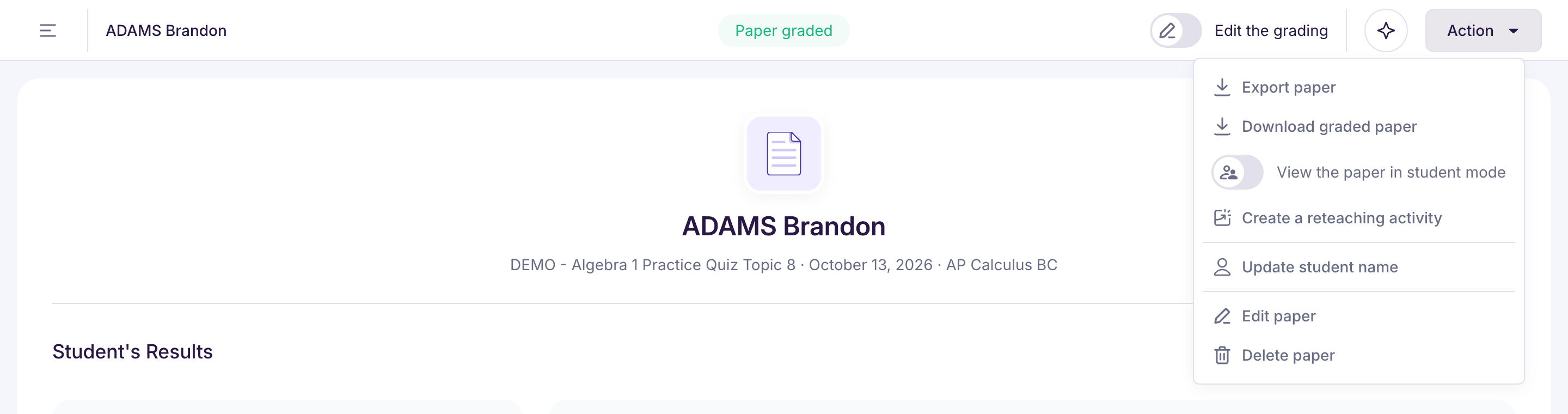
You can also do this directly from a paper, with the “Action” button at the top right.
→ You'll find the same options there: download, edit or export.
All papers at once
-
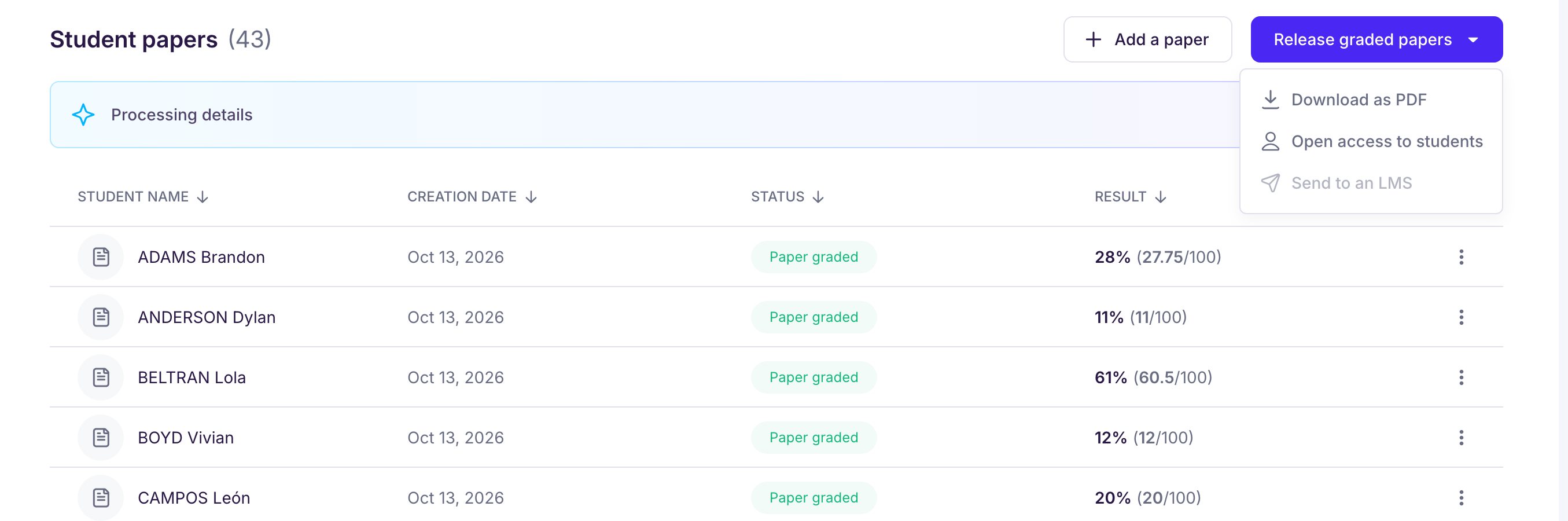
In the “Student papers” tab, click “Release graded papers”, then “Download as PDF”. You can also use the assessment's “Actions” menu, “Download graded papers”.
-
“Select students”: choose the students you want.
-
“Customize the PDF”: choose the content, then the export format: one PDF per student (ZIP file), a single PDF for all students, or a single PDF for double-sided printing.
Share papers with your students
Click “Release graded papers”, then “Open access to students”. See Comment s’opère le rendu des copies aux élèves ? and, for printing, Comment optimiser l’impression des PDFs exportés par Ed.ai ?.
If your school connects Ed.ai to its LMS, the same menu also offers “Send to” followed by the name of your LMS (for example “Send to Canvas”). Depending on your LMS, you can send each student's score, Ed.ai's comment and a PDF of the graded paper. See Ed.ai s’intègre-t-il avec le LMS de mon établissement ?.