How do I edit or add to the grading Ed.ai suggests?
Last updated: October 15, 2026
🛠️ Grading you can edit from top to bottom
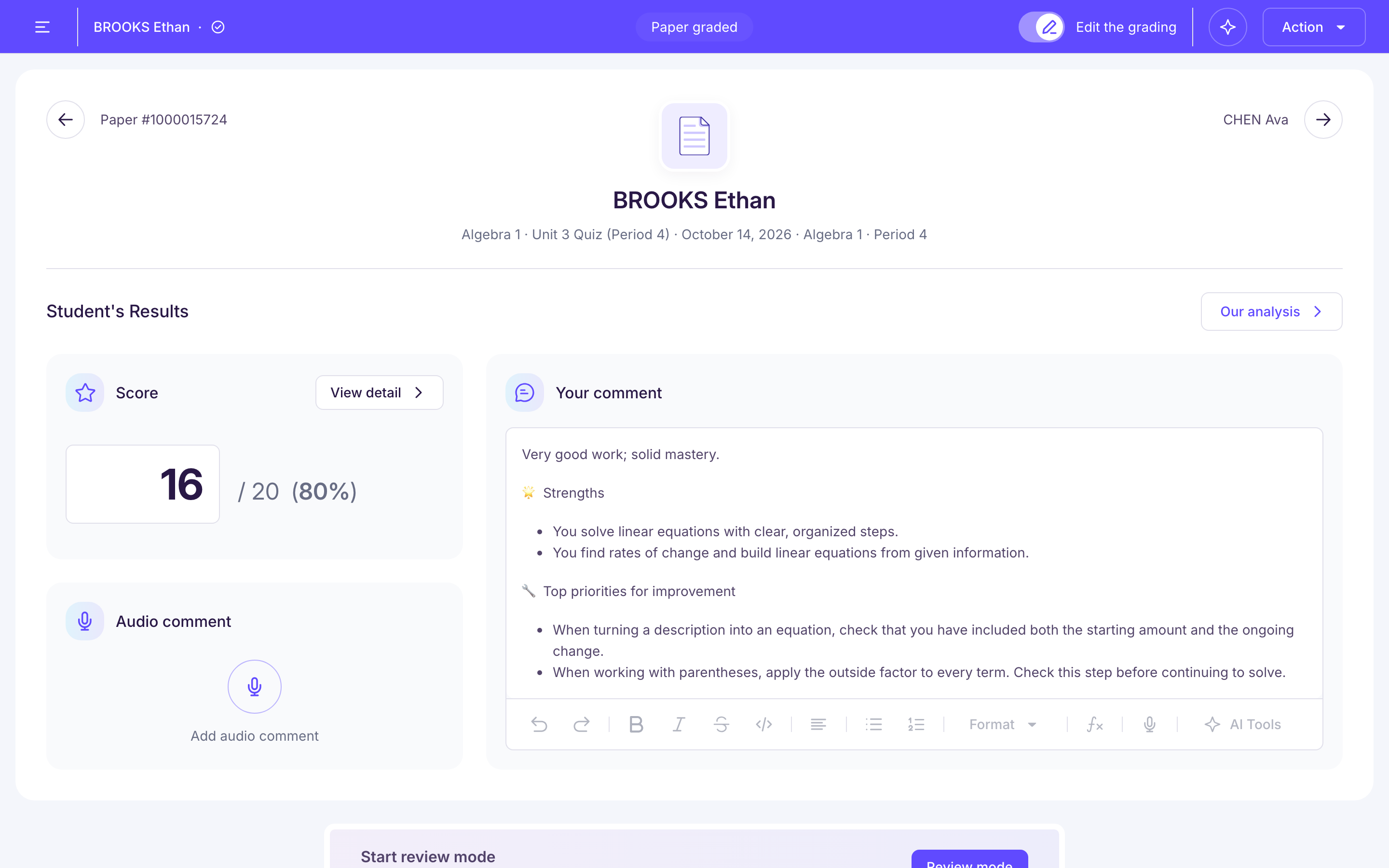
The grading Ed.ai suggests is 100% editable: you stay in control from start to finish.
From the teacher view, you can:
-
✏️ Edit the overall comments generated automatically,
-
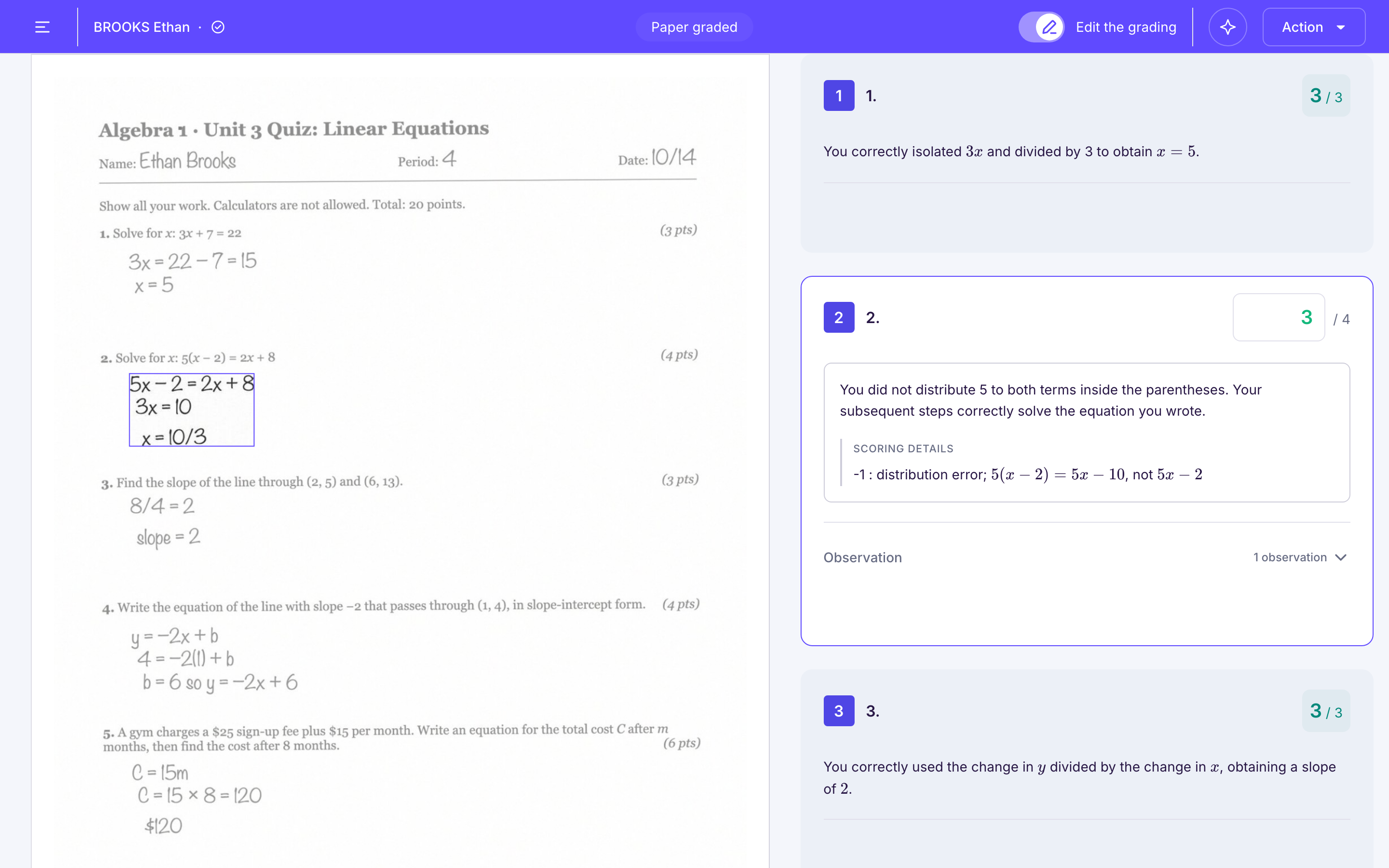
💬 Adjust or add your own comments on each question,
-
🧮 Fix the grading scale or adjust the points awarded, for example the partial credit on a multi-step algebra problem where a student set up the equation correctly but slipped on a sign,
🎯 The goal: fine-tune the grading until it matches your expectations exactly, before you share it with the student.
👉 Tip: use the student view to check that the final version is clear and easy for the student to understand (see Qu’est-ce que la “vue élève” ?).
👨🏫 Step by step
✏️ Edit the overall comment
-
Turn on “Edit the grading” in the bar at the top of the paper.
-
Click in the comment box and type your new comment.
-
Your comment is saved automatically.
🧾 Edit the details of the paper
-
Turn on “Edit the grading” in the bar at the top of the paper.
-
Click the grading block you want to change.
-
Change the score or the comment.
-
Your changes are saved automatically.
🧮 Changing a score: in what order?
-
Change the question scores first: each change carries over automatically to the exercise score and the total score.
-
Only change an exercise score or the total score as a last resort: that change doesn't carry over to the questions, and nothing is recalculated afterwards. If you then change a question in that exercise, the two changes add up. For example, if you move an exercise from 4 to 5 points, then one of its questions from 1 to 2 points, the exercise goes to 6 points and the total score goes up by 2 points.
-
For an overall adjustment, use a bonus or penalty criterion instead, if your grading scale has one.
-
The skills mastery table stays the one set during the initial grading.
-
Regrading recalculates everything, but erases the scores and comments you changed.
Use review mode
-
In the “Start review mode” banner, just above the student's paper, click “Review mode”.
-
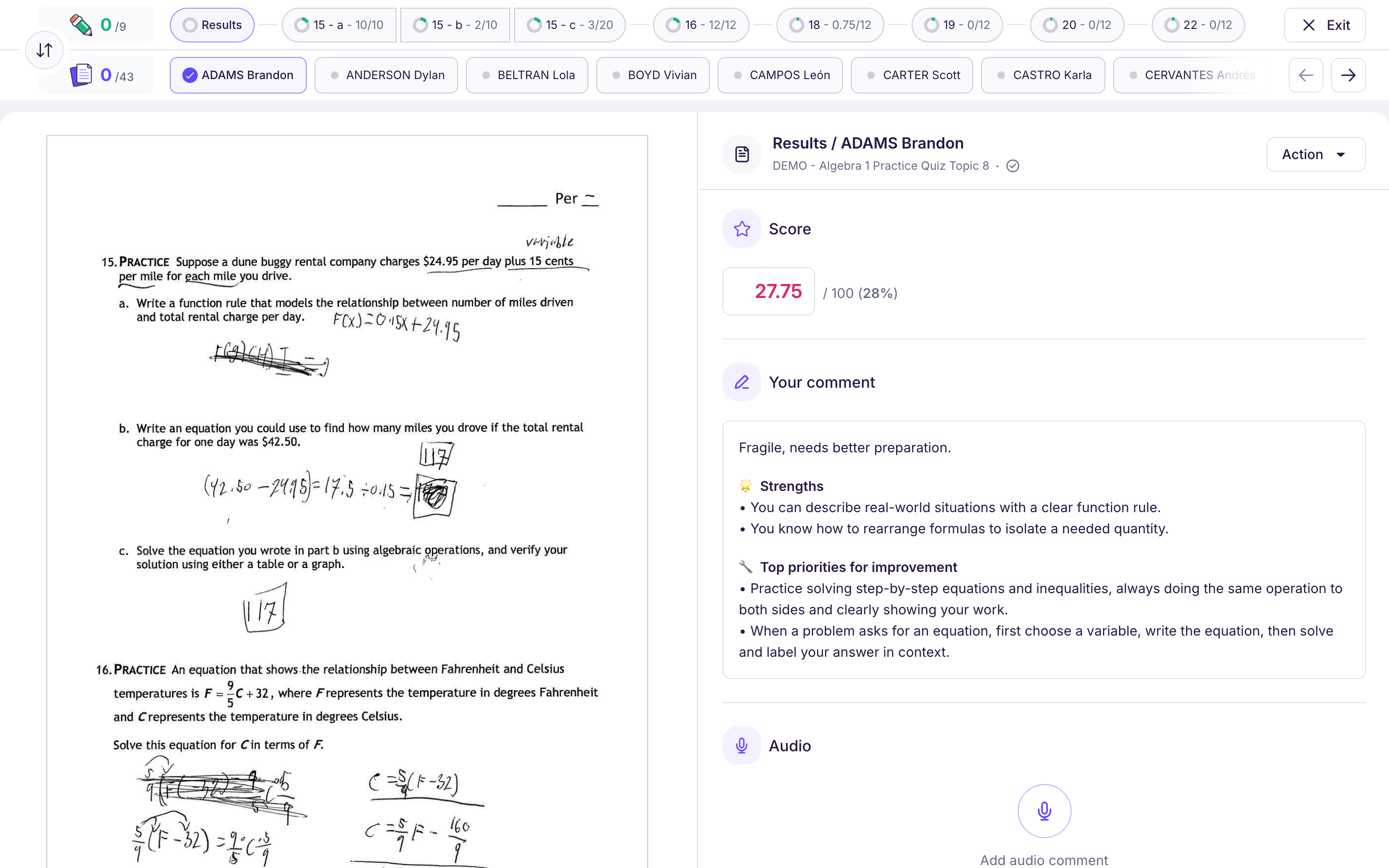
Once review mode is open, you have two options. To switch from one to the other, click the round double-arrow button at the top left, between the two counters (tooltip “Switch”):
-
Review paper by paper (the top banner shows a purple paper): you go back over the grading question by question within each paper, and move between questions with your keyboard arrows
-
Review question by question (the top banner shows a green pencil): you grade question 1.1 for every student, then question 1.2 for every student, and so on.
-