How do I use my phone to scan student papers?
Last updated: October 15, 2026
🛑 There’s no Ed.ai mobile app to install anymore: you scan directly in your phone’s browser.
📲 Add papers with the Ed.ai mobile website
Added an assessment? Time to add your students’ papers to it.
🧭 Step 1: open the paper import
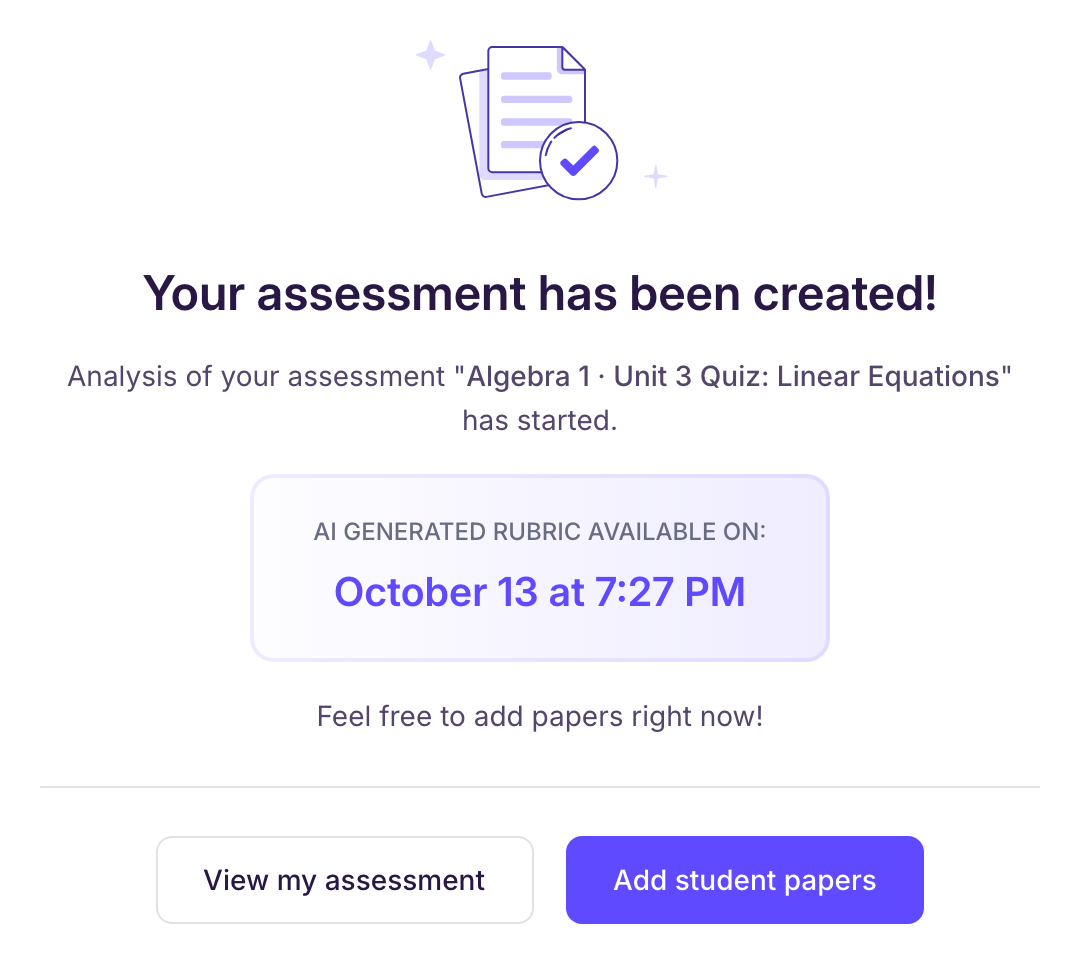
Once your assessment is created, this screen appears.
Click “Add student papers”.
📌 Step 2: choose how to add papers
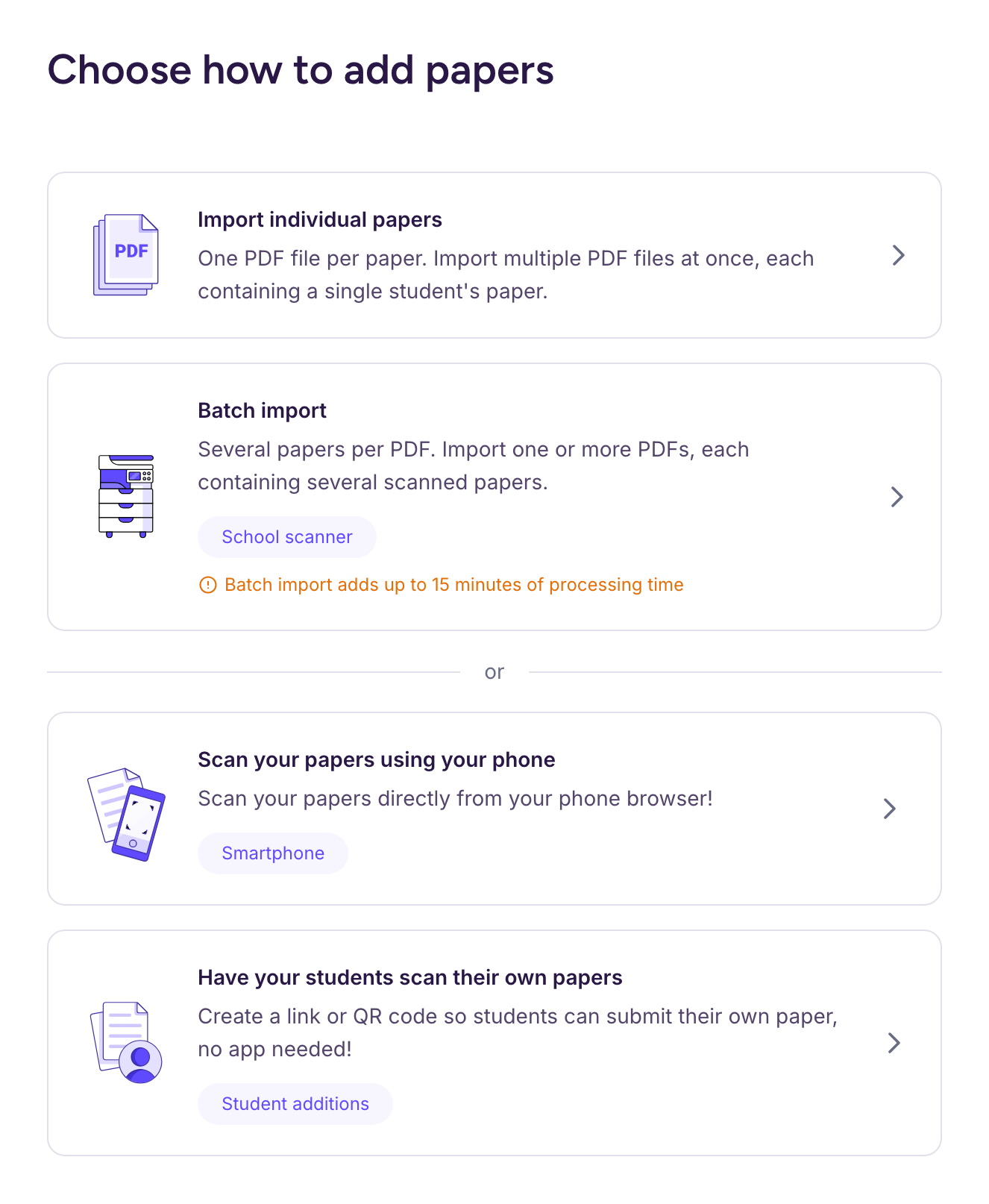
The next screen shows several import options.
👉 Choose the option:
🟣 “Scan your papers using your phone”
📱 Step 3, option 1: use the mobile website yourself
-
From your computer, open the QR code for your assessment.
You can find this QR code by clicking “Add a paper” in the “Student papers” tab, then choosing “Scan your papers using your phone”.
-
Scan the QR code to open the mobile website in paper-scanning mode.
-
Scan your students’ papers with your smartphone, following the on-screen steps.
📱 Step 3, option 2: have your students scan their own papers
-
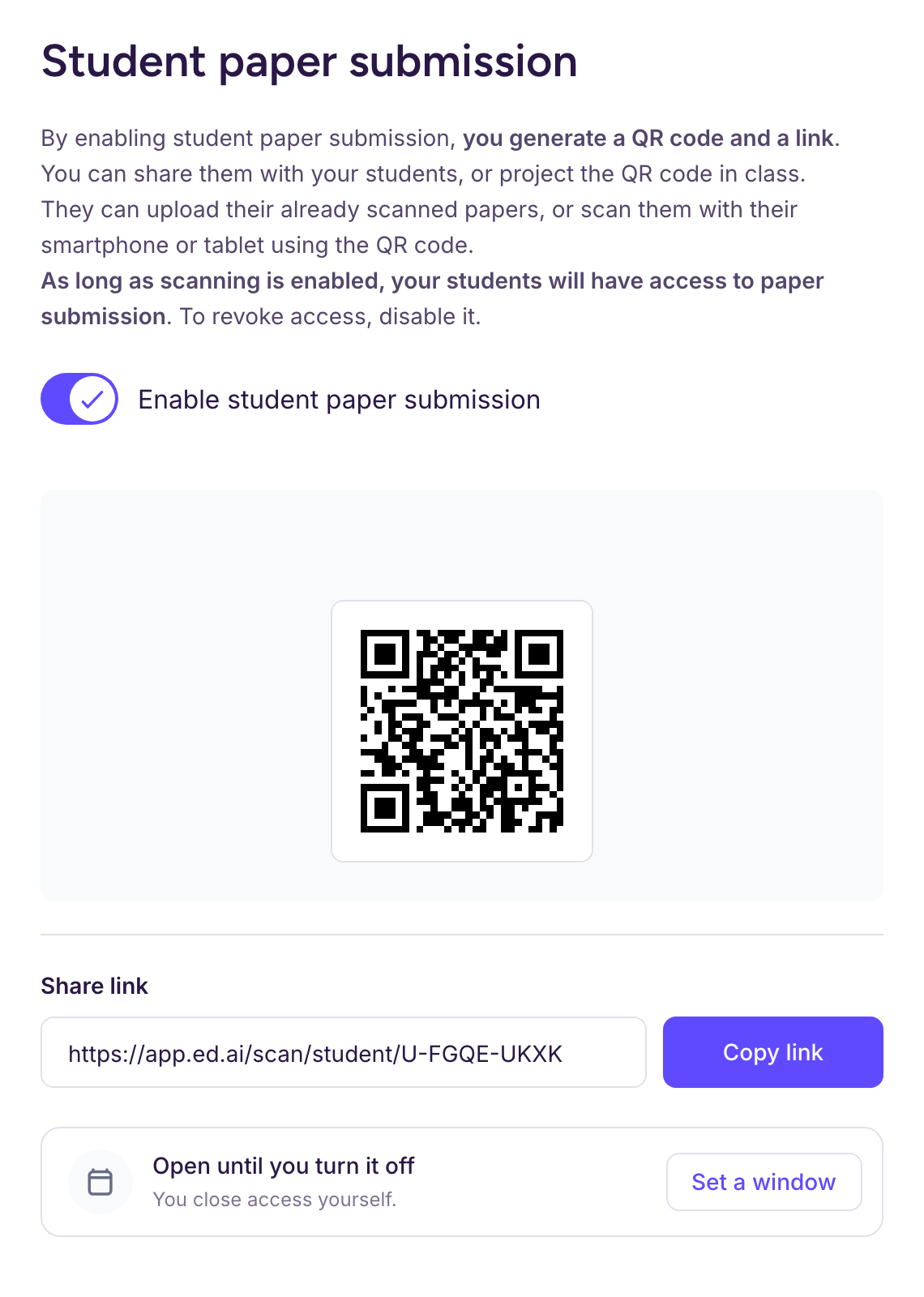
Turn on student paper submission (“Enable student paper submission”)
-
This shows a QR code you can project in class (and a share link you can send them).
You can find this QR code by clicking “Add a paper” in the “Student papers” tab, then choosing “Have your students scan their own papers”.
-
Each student can now scan their own paper. Students don’t need an Ed.ai account beforehand, and they don’t have to sign in if they already have one.
-
The papers your students scan show up in the assessment as they come in.
✅ Once the papers are in...
Ed.ai takes it from there!
-
You get an email as soon as the grading is ready.
-
The grading status updates automatically.
⏳ Grading takes under 30 minutes, and each paper shows when its grading will be ready: see Quelle différence entre le mode de correction rapide et le mode de correction approfondie ?
🧭 Looking for a faster method for a big stack of papers?
👉 Guide pratique : scannez des copies avec votre scanner d’établissement