How do I manually associate a paper with the right student?
Last updated: October 15, 2026
🔁 Associate a paper with a student
If one or more papers weren’t automatically linked to the right student, you can link them yourself, right from your teacher account.
Option 1: the paper isn’t associated with a student yet
In this case, an orange “Action required” box appears: it means the paper hasn’t been linked to a student.
👉 Here’s what to do:
-
Open your assessment.
-
In the “Student papers” tab, find the paper in question (flagged with a small orange warning sign next to the name).
-
Click the paper to open the side panel on the right.
-
In that panel, click “Associate” in the orange “Action required” box.
-
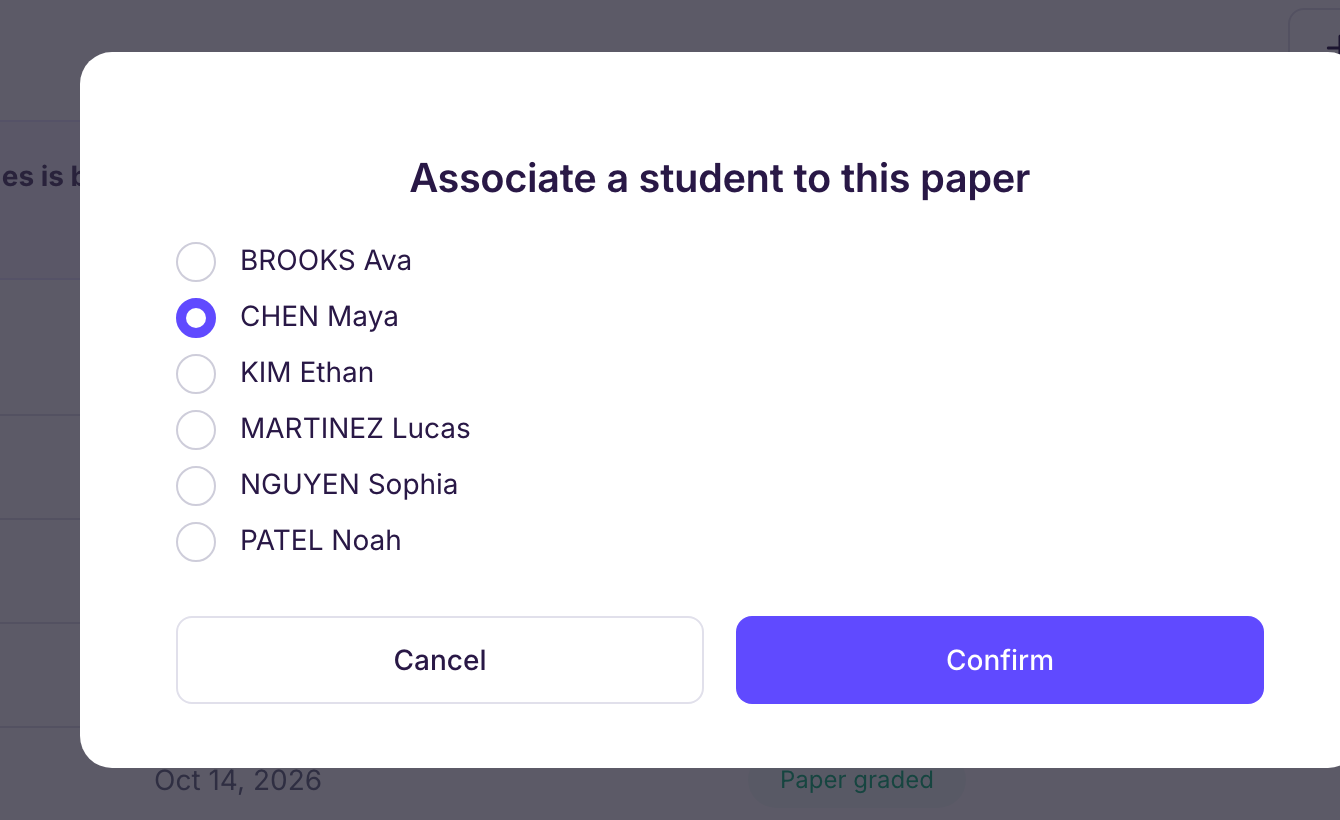
Select the right student in the window that opens.
-
Click “Confirm” to save your choice.
-
The paper is now linked to the right student.
Option 2: the paper is already associated, but with the wrong student
Sometimes a paper is already linked to a student, just not the right one.
👉 Here’s what to do:
-
Click the paper in question.
-
Check the name of the student it’s currently associated with.
-
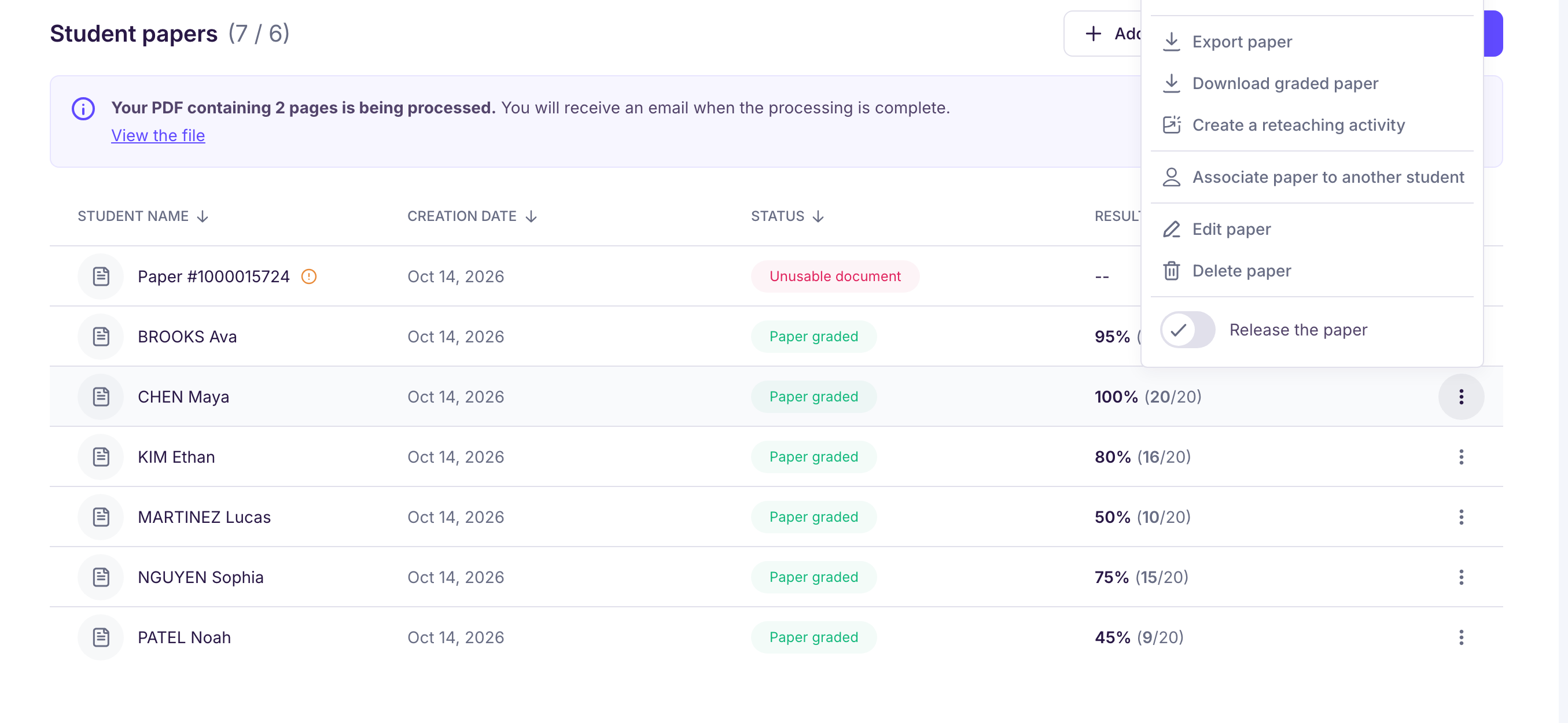
If it’s the wrong student, click the “⋮” menu to the right of the student’s row.
-
Click “Associate paper to another student”
-
Select the right student, then confirm.
If no edit option shows up, contact Ed.ai support at contact@ed.ai and we’ll fix it quickly.