How do I use review mode?
Last updated: October 15, 2026
Review mode helps you go through a large number of papers once Ed.ai has graded them. While you review, you can change the comments, the feedback, the scores and more. Review mode lets you move from one paper to the next easily, so you can make those changes quickly.
-
Go to “Student papers”
-
Pick a paper and click “View the graded paper”
-
In the purple “Start review mode” banner, just above the student’s paper, click “Review mode”

-
Once review mode is open, you have two options:
-
“Walk through papers”: review one student at a time. You go through the grading question by question within the paper, and move between questions with your keyboard arrows.
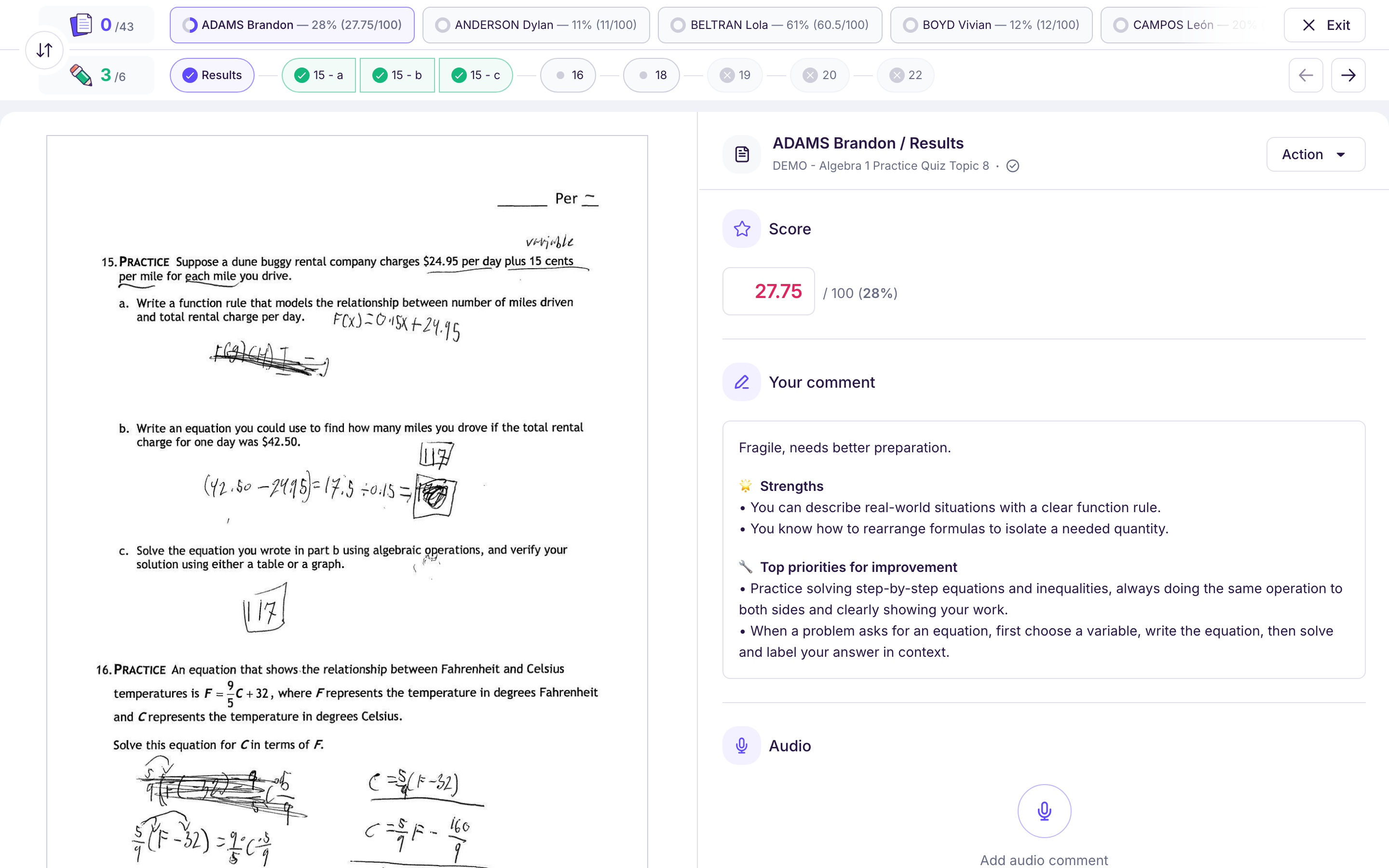
-
“Walk through exercises”: review one exercise at a time. You grade exercise 1 for every student, then exercise 2 for every student, and so on.
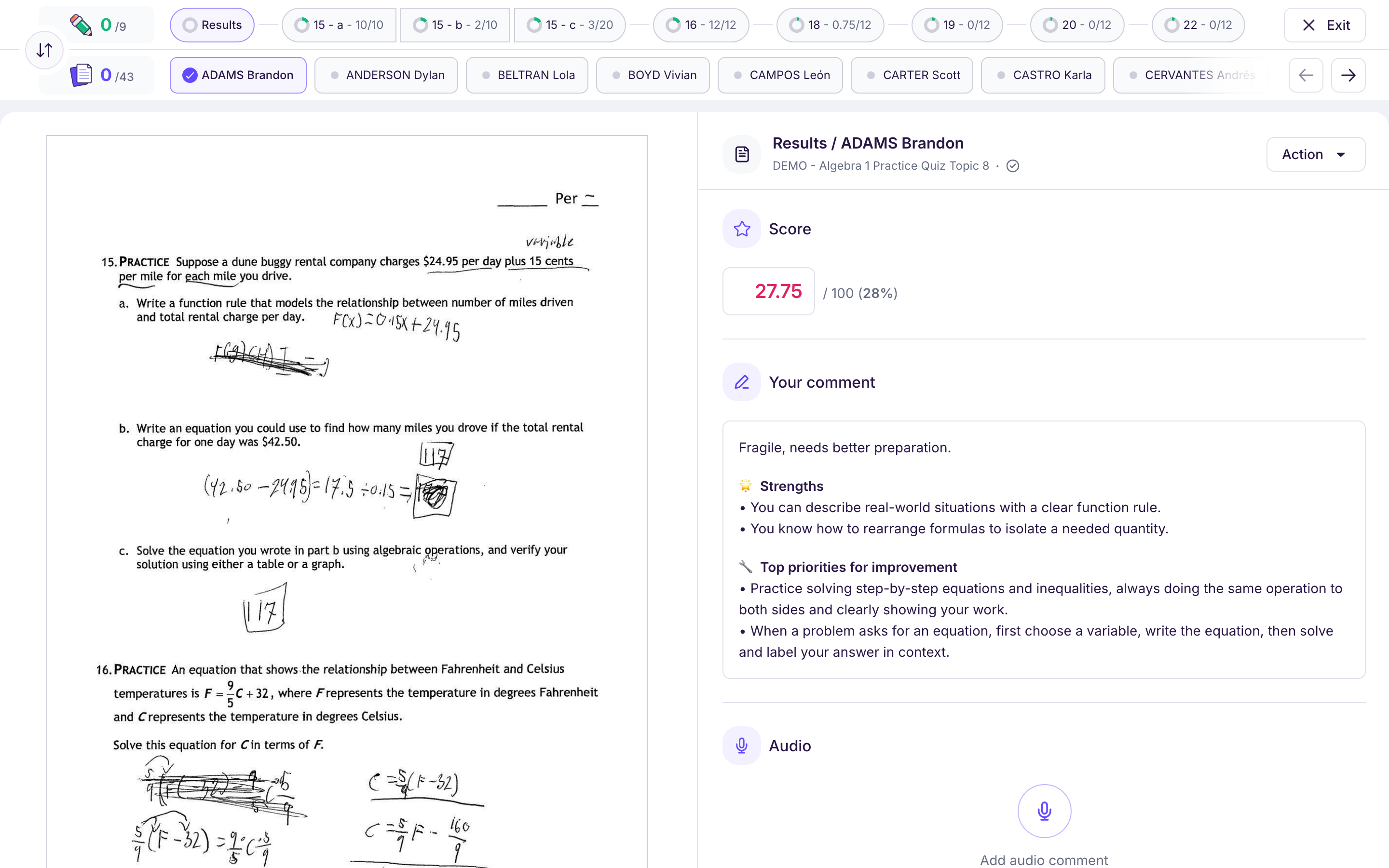
Click “Switch mode” to go from one to the other.
Tips for reviewing a full class set
-
Ed.ai grades every paper and drafts the feedback, but you make the calls.
-
Reviewing exercise by exercise keeps your judgment consistent across the class and makes the adjustments you want to make easier to spot.
-
Edit the “Student feedback” where it matters: encouragement for a student who is struggling, a push for one who is coasting.
-
Once every paper is reviewed, click “Release papers” to share the graded papers with the whole class or with selected students only.