I can't find all my students, classes, groups, electives or specialty courses on Ed.ai. What should I do?
Last updated: October 15, 2026
📍 For schools in France. This article covers a system that only schools in France use.
Your classes and students aren't entered in Ed.ai: they come from your school's tool. Ed.ai uses what your ENT (through the GAR, the French national access platform), EcoleDirecte, Pronote or Tabuléo sends it, and each one sends different information. Find your situation below, and what you can do if students or groups are missing.
👉 Your situation depends on how you sign in to Ed.ai: from your ENT's Médiacentre, with EcoleDirecte, from Pronote or from Tabuléo. On the “My groups” page, the tag on each imported group also tells you: ENT, EcoleDirecte, PRONOTE or TABULEO.
You sign in from your ENT (GAR)
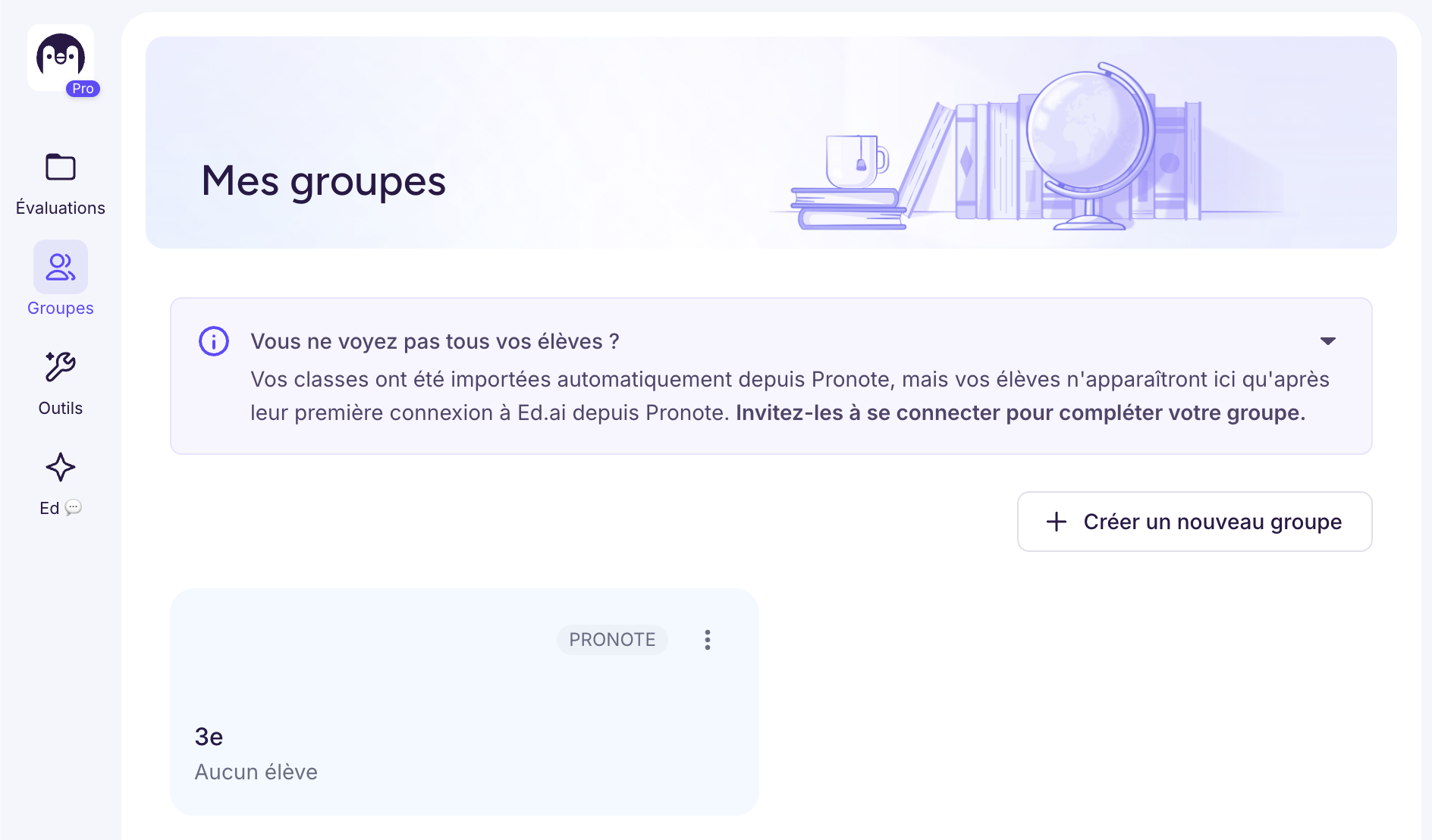
Your classes and groups (electives, specialty courses, split groups) are imported as soon as you sign in, but they start out empty: a student only shows up after their first sign-in to Ed.ai from their ENT. Their groups are then updated each time they sign in. The GAR sends groups and electives as they're set up in your school's ENT, and not always the same way for you and for your students: you may receive the group “2NDE 5 MATHS” while your students only arrive in the class “2NDE 5” or in a split group. Your group then stays empty or incomplete, even if your students have signed in. And if a group or an elective doesn't show up at all, the ENT doesn't send it.
If students are missing:
-
Ask them to open Ed.ai once from their ENT's Médiacentre. If they can't find Ed.ai there, the resource hasn't been assigned to them yet: the person in charge of GAR assignments at your school can do it.
-
If they've signed in but your group stays empty, look in the matching class (for example “2NDE 5”): your students are there. You can create your assessments on that class, or create your own group (“Create new group” button) from its students.
-
For the group to fill up on its own, your school's digital lead can check in the ENT that the students are enrolled in it.
You sign in with EcoleDirecte
Your classes, specialty courses, electives and split groups are imported with their students: your students don't need to sign in to show up. The lists update when you sign in, at most once an hour, and a student who leaves a class or group in EcoleDirecte is removed from it.
If a group stays empty or incomplete:
-
If the group was just corrected in EcoleDirecte, sign in to Ed.ai again from EcoleDirecte an hour later.
-
If the group stays empty, EcoleDirecte isn't sending us its student list: your school's office or EcoleDirecte lead can check who's in it. In the meantime, create your own group with students from your school.
You sign in from Pronote
Pronote sends your classes, but not your groups, electives or specialty courses. As with the ENT, your classes start out empty: a student only shows up after their first sign-in to Ed.ai from Pronote.
If students or groups are missing:
-
Ask your students to open Ed.ai once from Pronote.
-
For a specialty course, an elective or a split group, create your own group and add the students from your school who have already signed in.
-
If a whole class is missing, your school's Pronote lead can check that you're assigned to that class and that the Ed.ai resource is assigned.
You sign in from Tabuléo
Tabuléo sends your classes and your groups each time you sign in. As with the ENT, they start out empty: a student only shows up after their first sign-in to Ed.ai from Tabuléo.
If students are missing:
-
Ask your students to open Ed.ai once from Tabuléo.
-
If a class or a group is missing, your school's Tabuléo lead can check your assignment.
In every case
-
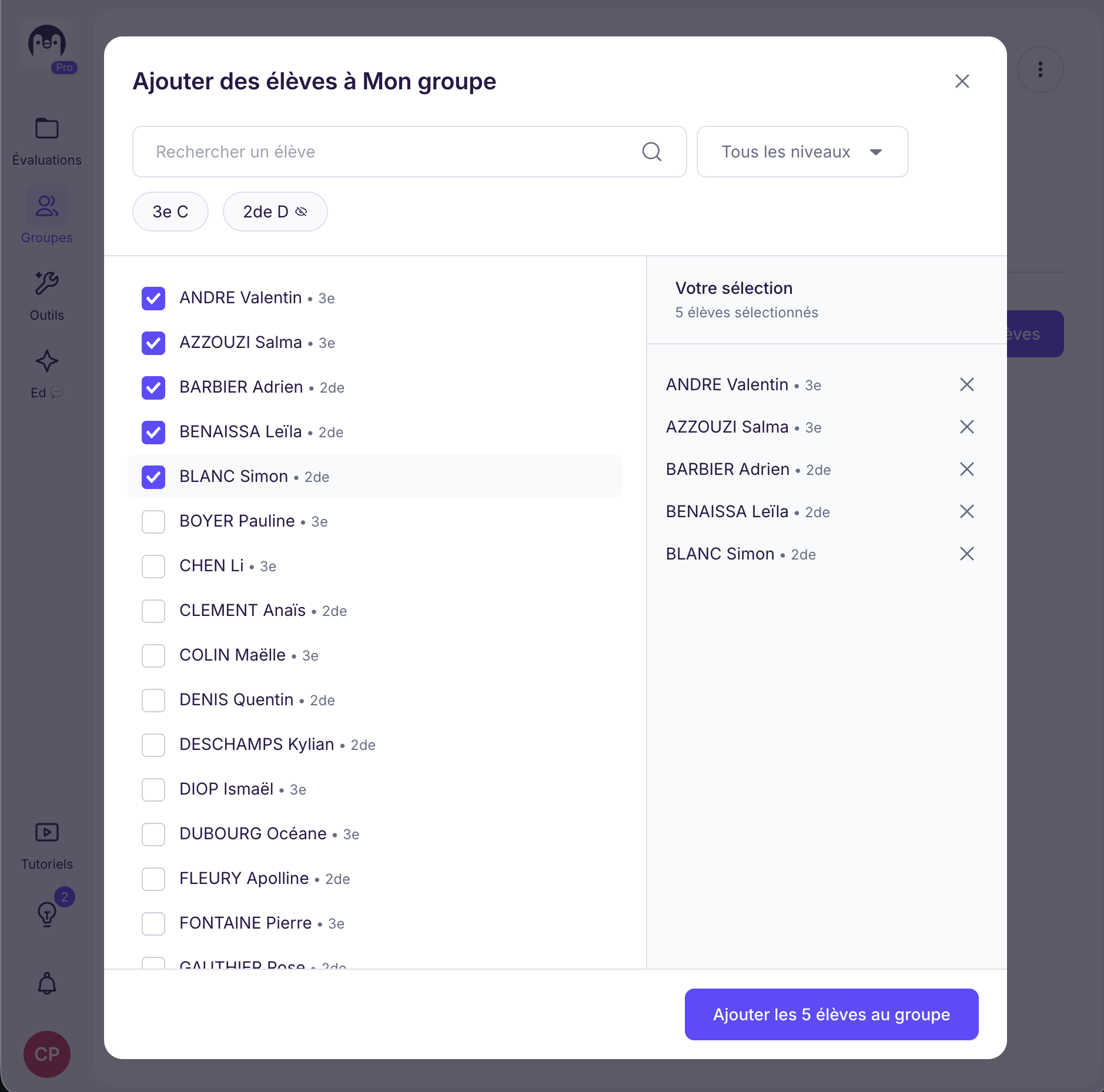
An imported group can't be edited: it mirrors your school's tool. To reorganize your students, create your own group (see Ajouter et modifier un groupe d’élèves).
-
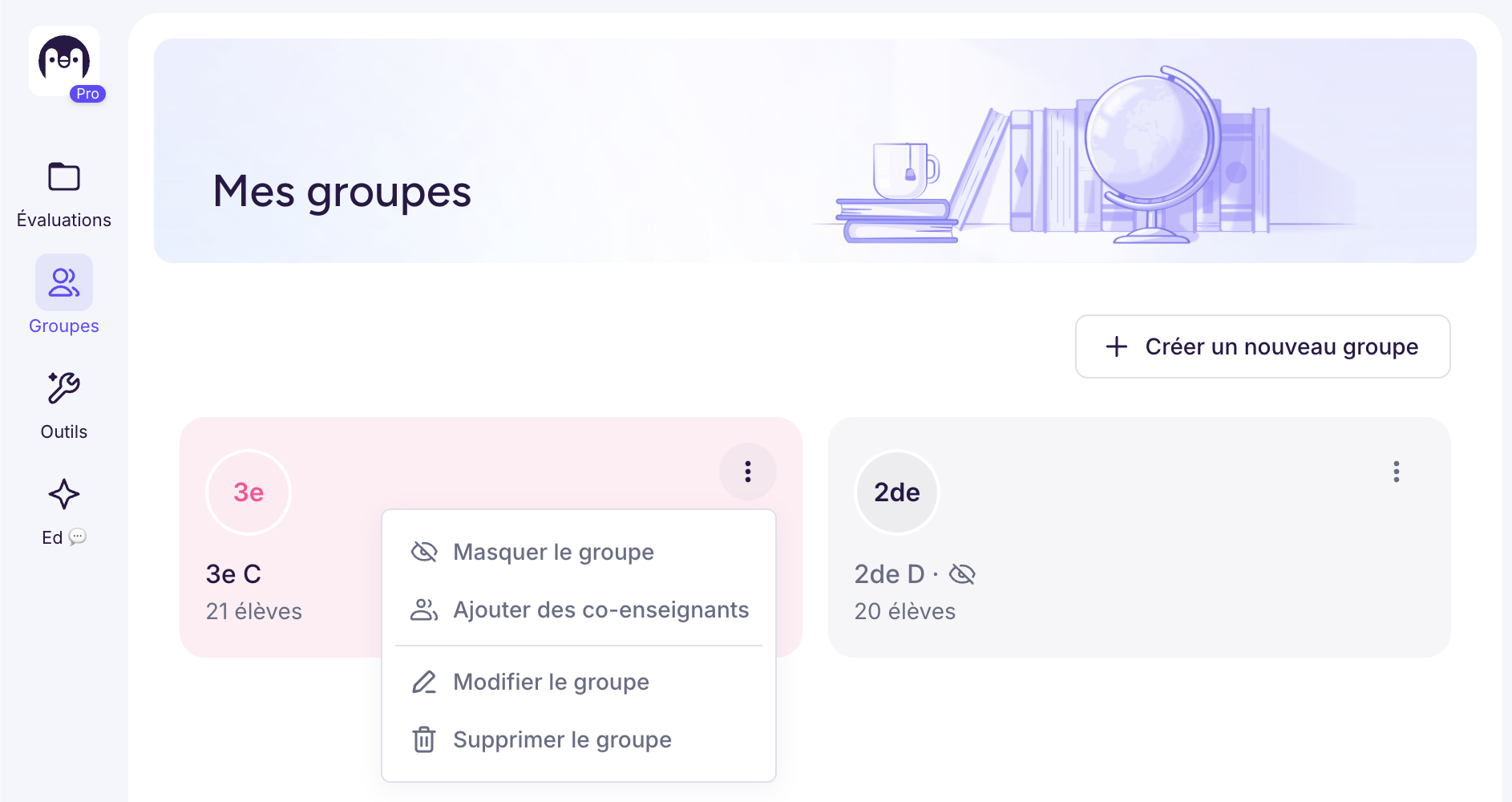
A class or group isn't relevant to you? Hide it with “Hide group” in the group's menu. It stays available, grayed out, and you can show it again at any time.
-
You teach at two schools, for example at the collège and the lycée of the same cité scolaire? You have one Ed.ai account per school, each with its own classes. Sign in from the ENT or the software of the school concerned.
-
A paper isn't matched to the right student? See Comment associer manuellement une copie au bon élève ?
-
Still having trouble? Email us at contact@ed.ai with your school, the group concerned and the name of a missing student.