How do I set up or change my grading profile?
Last updated: October 15, 2026
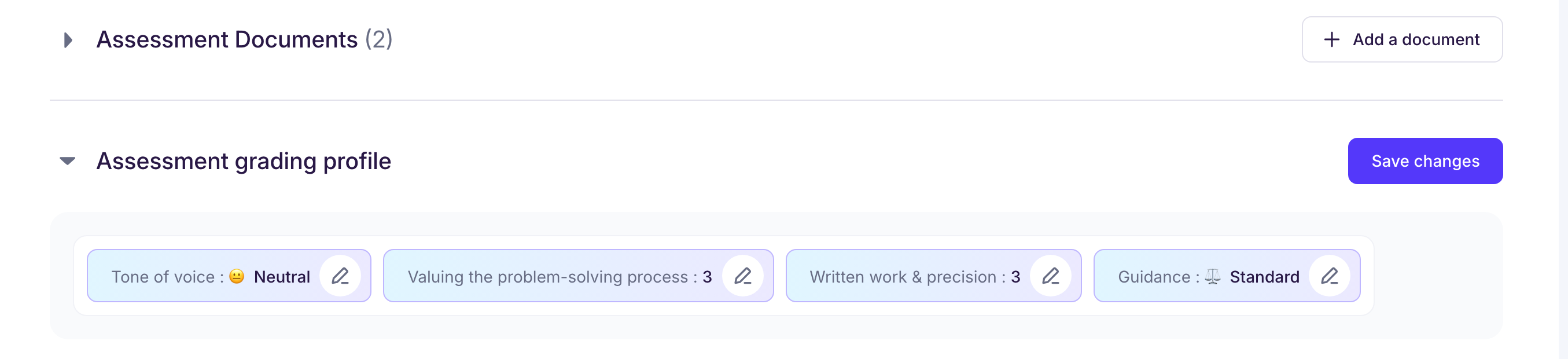
In the “Assessment documents” tab, every assessment has its own grading profile. It’s a short set of questions about your grading preferences, built around concrete, ambiguous cases in your subject: the kind where teachers don’t all grade the same way. Among other things, they set the tone used with your students and how strict a grader you are.
The questions depend on the subject you teach. In math, for example: how much you value the reasoning compared with the final answer, how much clear, precise written work counts, and how far the feedback guides students toward the correct answer.
The goal: fit the AI grading to the way you grade and to your judgment as a teacher. Ed.ai follows your criteria instead of imposing a one-size-fits-all model.
Change your default profile
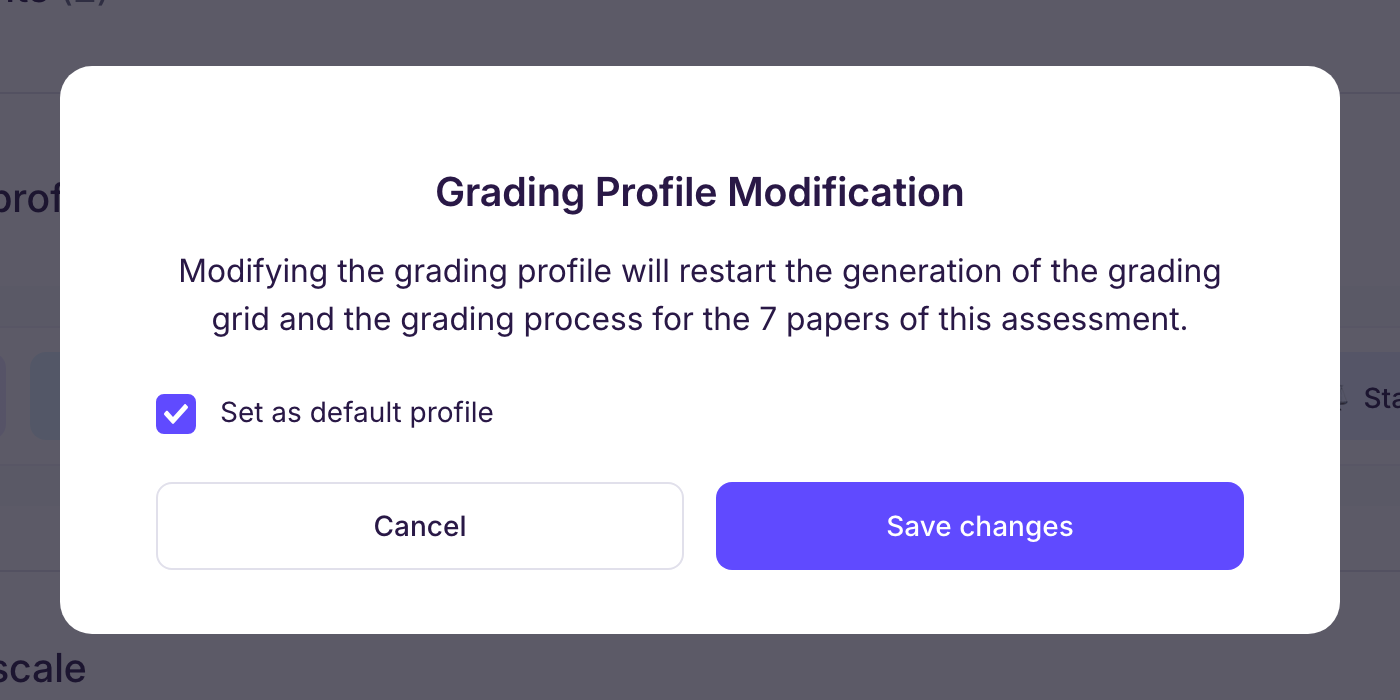
You change your default profile from an assessment: when you save its grading profile, leave the “Set as default profile” box checked (see below).
Change the grading profile of an assessment
-
Step 1: open the assessment, then the “Assessment documents” tab.
-
Step 2: click “Update grading profile” and make your changes, then click “Save changes” and confirm.
⚠️ Saving the change restarts the creation of the grading scale and the grading of every paper in the assessment.
💭 Good to know: the “Set as default profile” box, checked by default, also applies this profile to your next assessments. Uncheck it to change this assessment only.