Why does a paper or an assessment show an error, and what can I do?
Last updated: October 15, 2026
Before grading, Ed.ai checks that each document can be processed reliably. If it can’t, Ed.ai blocks the document rather than give you grading based on incomplete or misread work. The paper then shows an error: in the “Student papers” tab, its status tells you the cause directly, for example “Unusable document”. If no cause is given, the status shows “Error with the paper”.
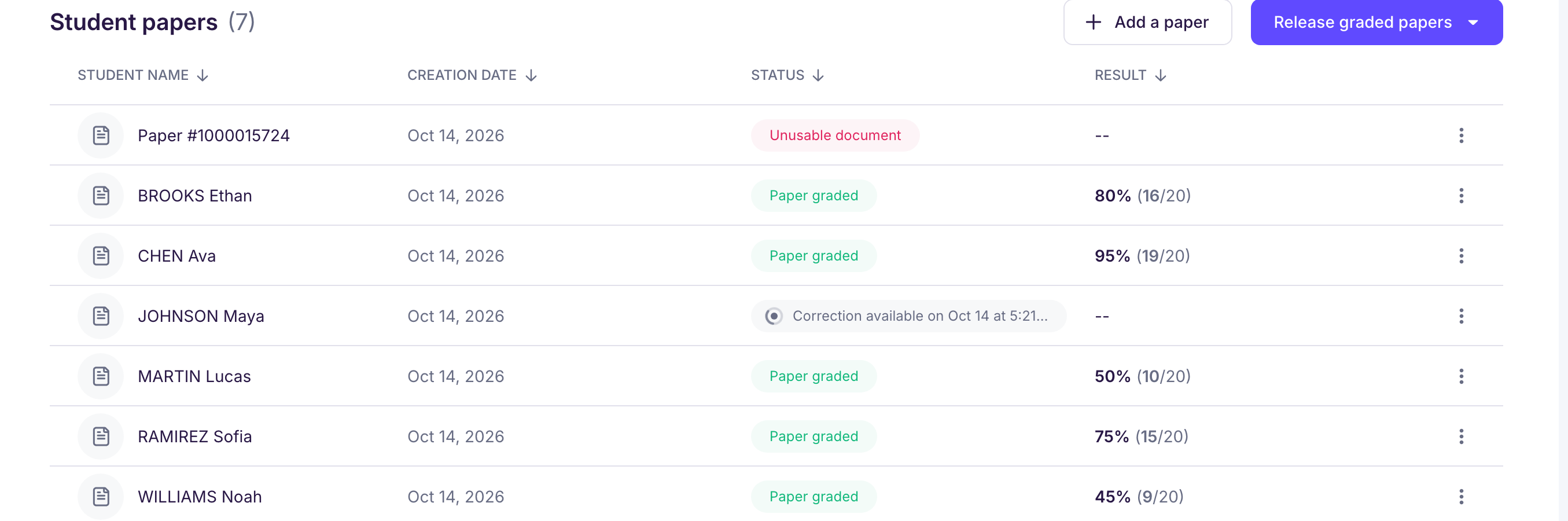
Causes, and what to do
“Unusable document”
Most often, part of the student’s work is cut off at the edge of the sheet. That’s why scanning again with the same framing doesn’t help. Scan the whole sheet with a visible margin all around, then replace the page (see below).
“Unreadable document”
The image doesn’t let us read the student’s work: a blurry photo, or writing that’s too faint or washed out by the scan. Scan the page again in good light, then replace it.
“Missing document”
On a paper, part of the student’s work is missing, pages for example: add them from the paper editing screen.
On an assessment, part of the assessment is probably missing, or the documents are empty: click “Complete my assessment” and add the missing document. See Quels documents d’évaluations sont obligatoires ?
“Subject not supported”
The assessment covers a subject, a course or topics that Ed.ai doesn’t offer yet: see Quelles sont les matières et niveaux disponibles sur Ed.ai ?
If your subject is on the list, check the curriculum and the course you chose, and make sure you uploaded the question sheet in the assessment documents, not a student paper. Papers are added afterward, in a second step.
Replace a page with an error
-
In the paper’s menu, choose “Edit paper”. The page in question is marked “Page error”.
-
Click “Add a page”, then “Upload a scanned document” or “Scan with your phone”.
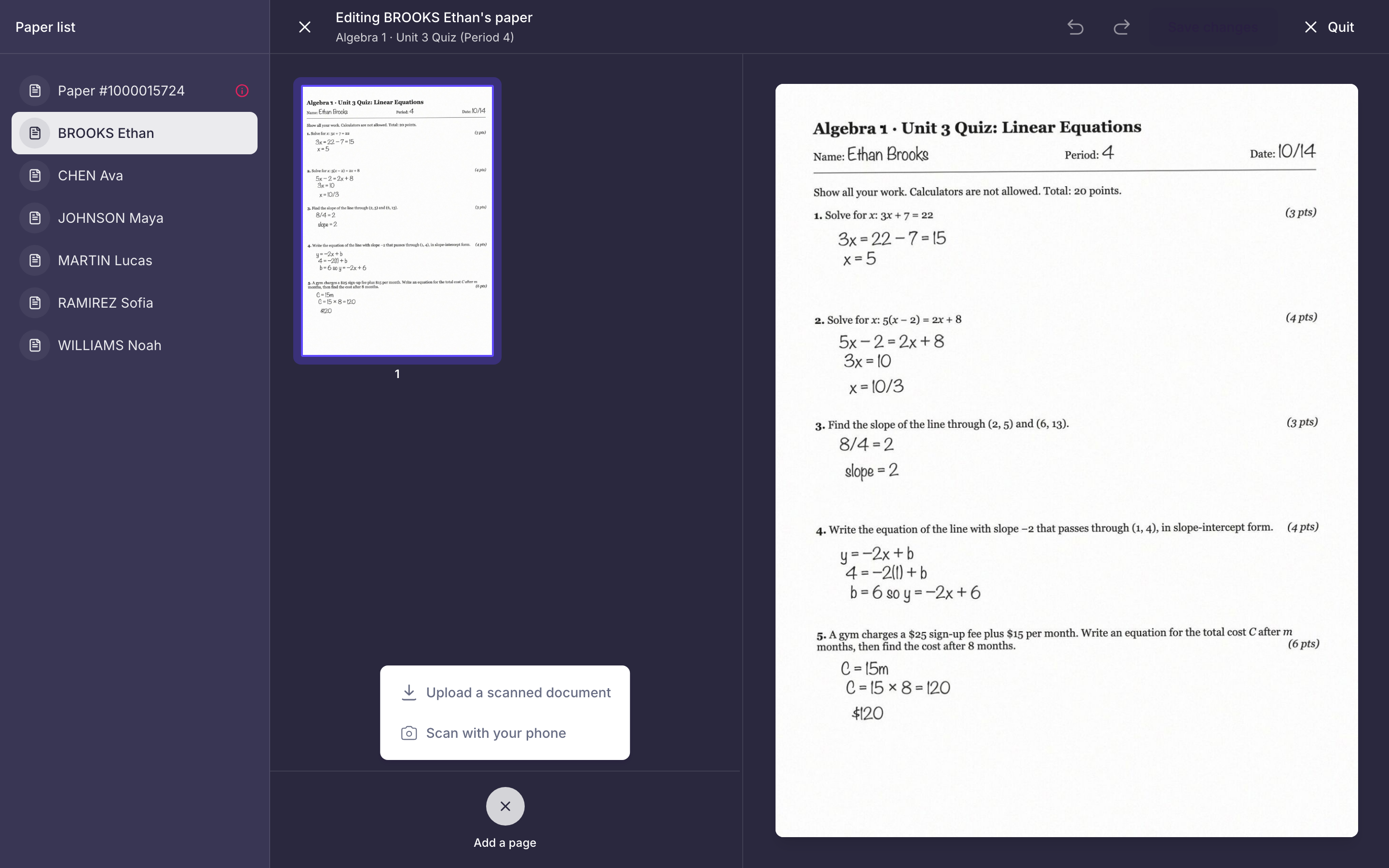
-
Delete the page with the error using “Delete page”.
-
Click “Save changes”. Only this paper is graded again: you don’t have to redo the whole assignment.
A paper sent by mistake (a blank page, a document with no student) can be deleted with “Delete paper” in the paper’s menu.
To avoid errors
-
Frame the whole sheet, with a visible margin all around.
-
Scan in good light, with no shadow on the page.
-
Keep each student’s pages together, one after another.
Still stuck?
Email us at contact@ed.ai with the name of the assessment and of the students concerned: we’ll look at the papers on our side.