How do I add an assessment?
Last updated: October 15, 2026
⚠️ You need to complete this step before Ed.ai can grade anything
Before you start:
Your assessment includes:
-
A question sheet, exactly as your students receive it (required)
-
An answer key (recommended)
-
A detailed grading scale (recommended): it is what brings the grading closest to your own
They can be in one document or several, typed or handwritten. Accepted formats: PDF, Word (.docx), LibreOffice (.odt), JPEG and PNG.
Steps:
-
Log in to your account: app.ed.ai
-
On the home page, click “+ Add an assessment”
-
Upload or scan your assessment
You land on this screen:
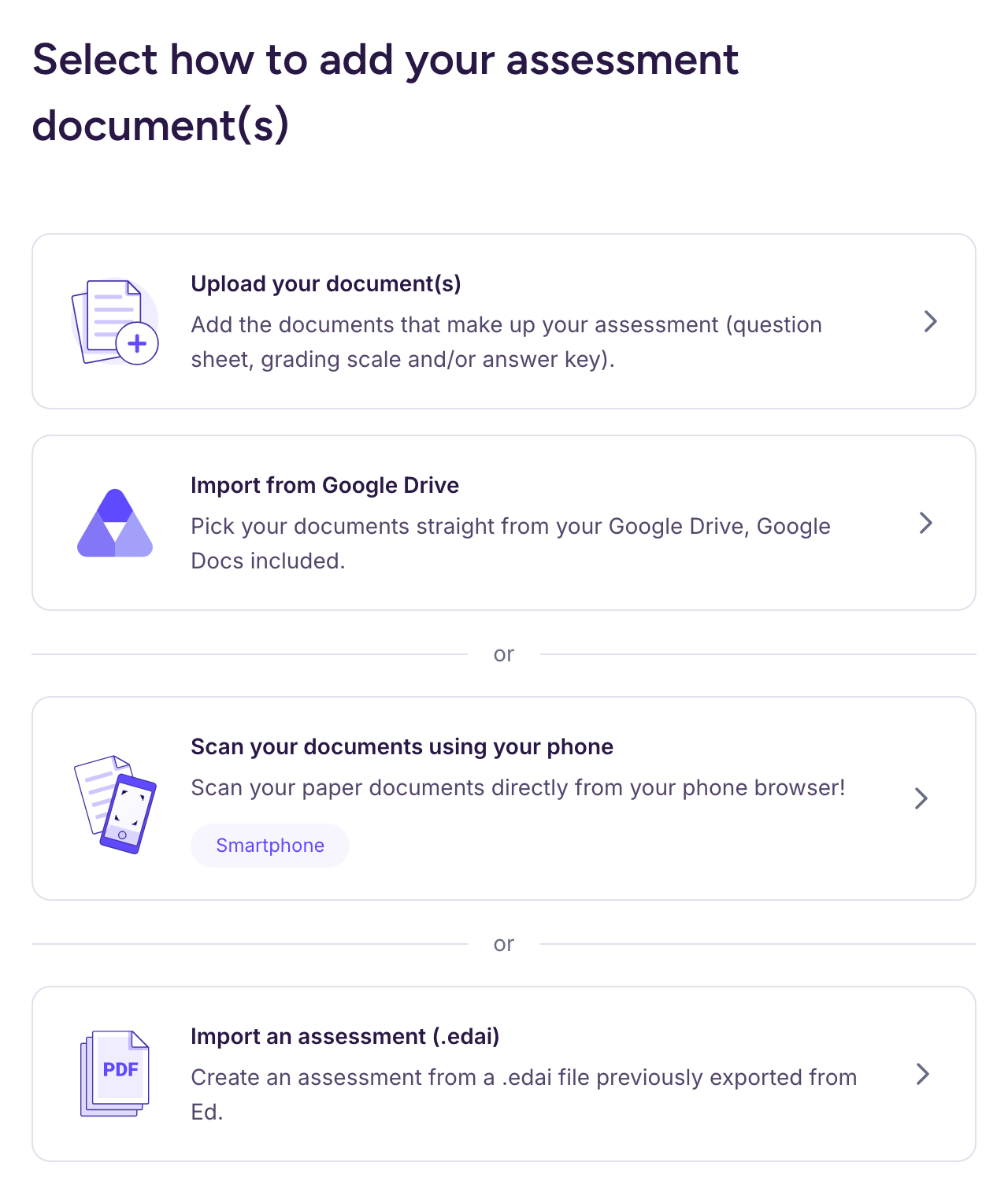
You have two main options:
Option 1
Best if you have a scanner or already have digital files
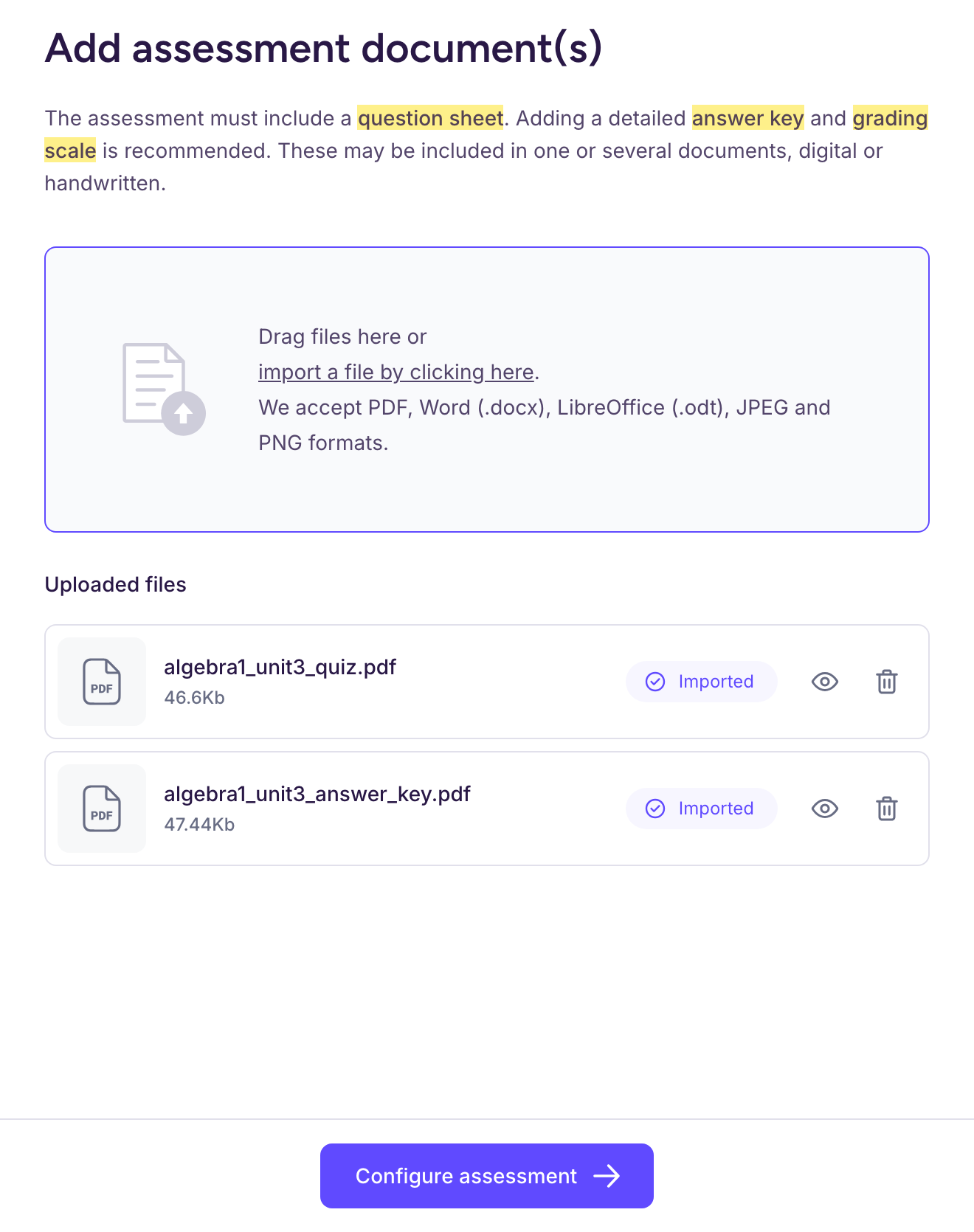
Choose “Upload your document(s)”, click “import a file by clicking here” and add your question sheet, plus your answer key and grading scale if you have them. If your files are on Google Drive, choose “Import from Google Drive” instead (Google Docs included).
Option 2
Best if you don’t have a scanner
-
Choose “Scan your documents using your phone”, then scan the QR code shown
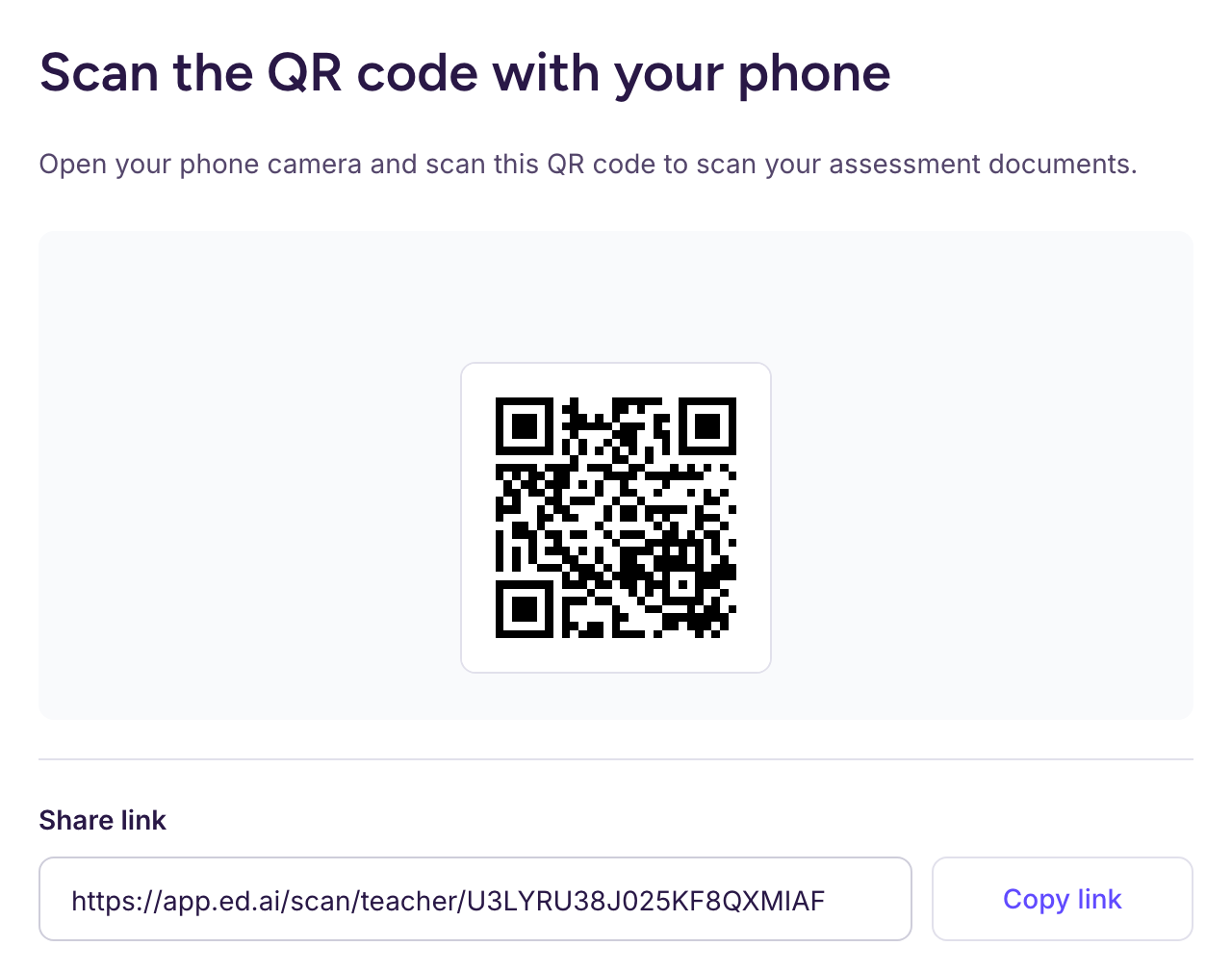
-
You can then scan the assessment documents directly from your phone or tablet browser
Note: a grading scale, especially a detailed one (points per step, partial credit rules), brings the grading closer to what you expect. It remains optional.
- Then click “Configure assessment”
-
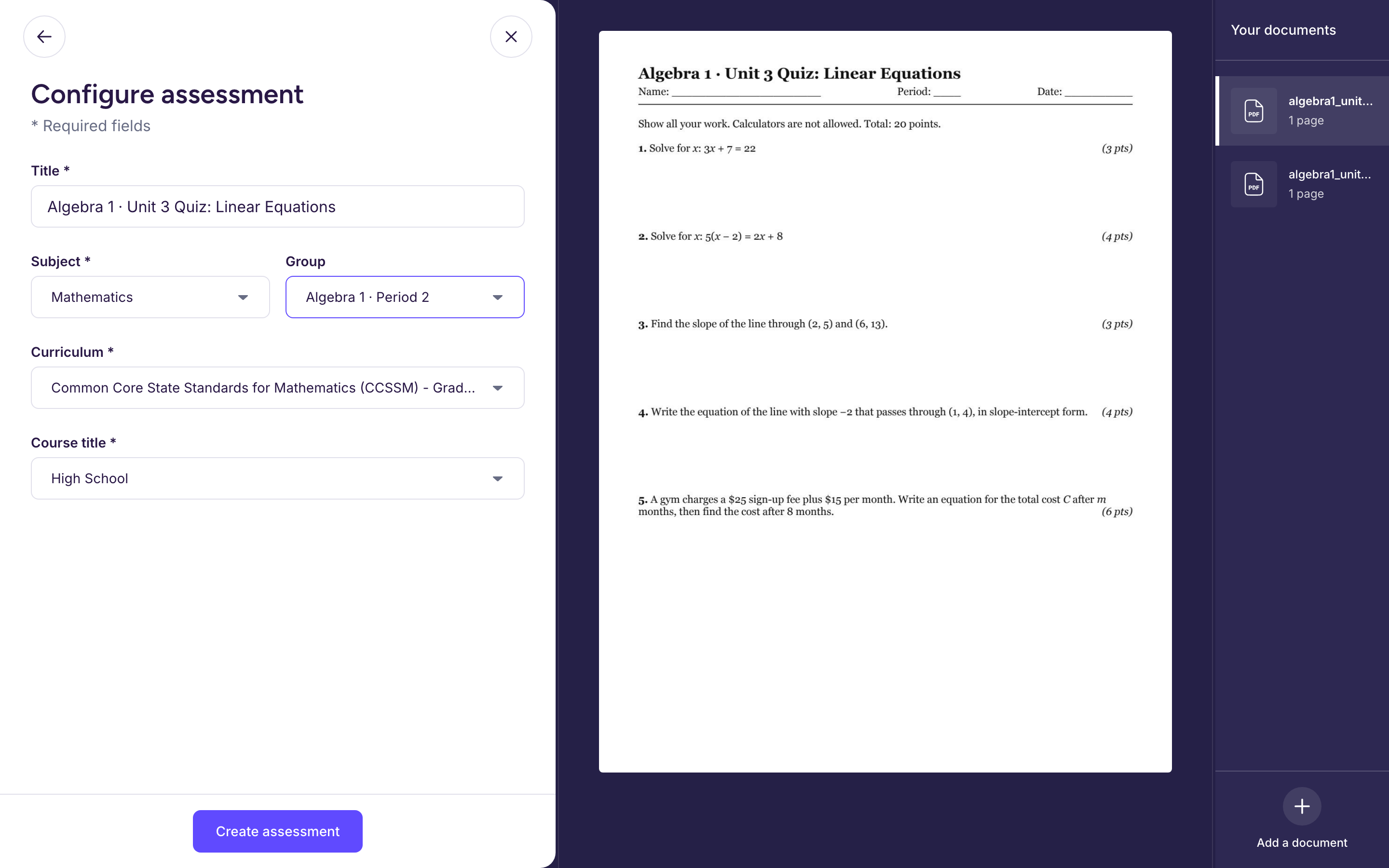
Configure your assessment
-
Fill in the requested fields: title, subject, group, curriculum and course title
-
Click “Create assessment”
Your assessment is created and its analysis starts: it takes under 20 minutes. You’ll see this screen:
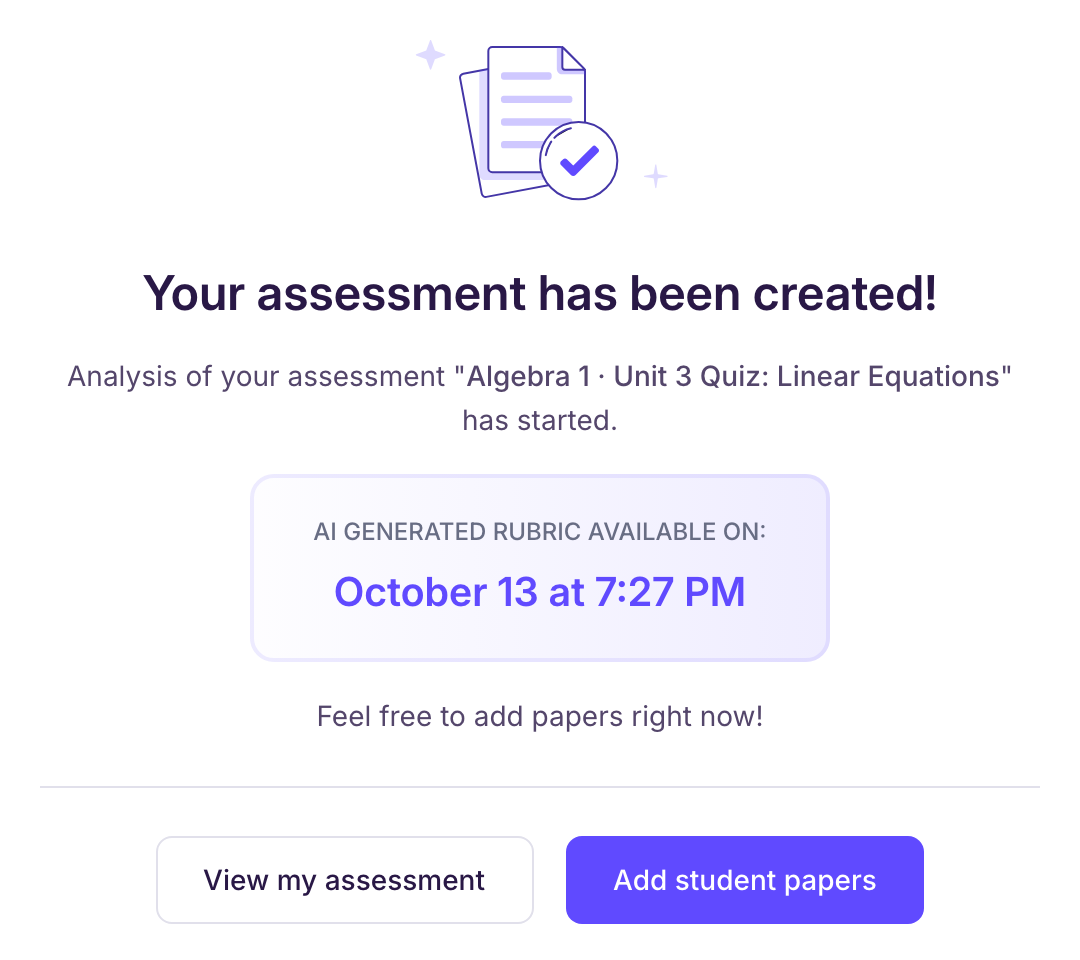
Next step: “Add student papers”. You can add them right away, without waiting for the analysis to finish.